


Start by measuring your desk, not by picking a gaming keyboard size first. Clear the surface where your keyboard and mouse actually sit, mark off the space your monitor stand and cables already take, and write down what's left as width and depth. That remaining rectangle, plus the mouse lane beside it, tells you the largest keyboard format you can use. From there, keep the biggest layout that still leaves your everyday keys within direct reach: full-size if you need the numpad, TKL if you don't, 65% if you want arrows in less space, and 60% only if you're fine reaching shortcuts through a layer.

Start With a Measured Keyboard-Size Shortlist
There's no single "best" gaming keyboard size. The right one depends on what your desk allows and which keys you actually use.

Once you know your usable width and depth, match it against these four conditions. Full-size makes sense only if you use the numpad regularly and the desk still leaves room for the mouse to sit comfortably beside the board. TKL is the middle path: you drop the numpad's width but keep the F-row, arrows, and navigation cluster exactly where you expect them. A 65% layout goes further, freeing more desk space while keeping dedicated arrow keys, at the cost of moving some F-row or numpad functions behind a layer. A 60% layout reclaims the most room for mouse movement, but nearly everything besides the main typing keys moves to a shortcut layer.
Treat this as a starting shortlist, not a final answer. The next sections turn it into actual inches and a specific product check.
Measure Usable Desk Width and Depth
Measure what's left after your monitor, cables, and typing position already claim their space, not your desk's full advertised size.
Mark the fixed objects first
- Measure your desktop's total available width and depth in inches.
- Mark where the monitor base or stand sits, plus the path your cables take across the desk.
- Mark the front edge where your wrists and the keyboard will actually rest during typing.
Record the remaining keyboard-and-mouse rectangle
Subtract the monitor and cable footprint from the total usable width and depth separately. What's left is your keyboard-and-mouse rectangle. Keep width and depth as two separate numbers. A keyboard can pass the width check and still be too deep to leave room for your wrists or a wrist rest, so don't collapse the two measurements into one guess. Save both figures. You'll compare them directly against a product's listed dimensions later, before you buy anything.
Check Mouse Clearance, Monitor Placement, and Typing Space
A keyboard that fits your width measurement can still crowd your mouse arm or leave too little depth for comfortable typing, so check clearance separately from footprint.
Measure the natural mouse lane
- Sit in your normal gaming position at the desk.
- Rest your left hand at WASD and let your right hand fall naturally where it wants to hold the mouse.
- Measure that span and compare it with the keyboard's right edge and the desk's edge. This posture-based check for the WASD-to-mouse distance gives you a real number instead of a guess.
Check monitor and typing depth together
Keep the monitor at a distance you can read without leaning forward or back. OSHA guidance also recommends placing the mouse beside the keyboard and allowing roughly 18 to 20 inches, or about arm's length, for monitor viewing distance. Confirm that the cable path does not eat into your front typing edge before judging whether the keyboard itself fits. If your chosen format pushes the mouse noticeably farther than the span you just measured, that's your signal to test a smaller layout, unless the keys you'd lose matter more than the extra room.
Compare Full-Size, TKL, 65%, and 60% Layouts
Each step down in size trades desk space for direct key access, and the exact dimensions vary by model rather than following a fixed standard.
Read the layout differences, not just the percentage
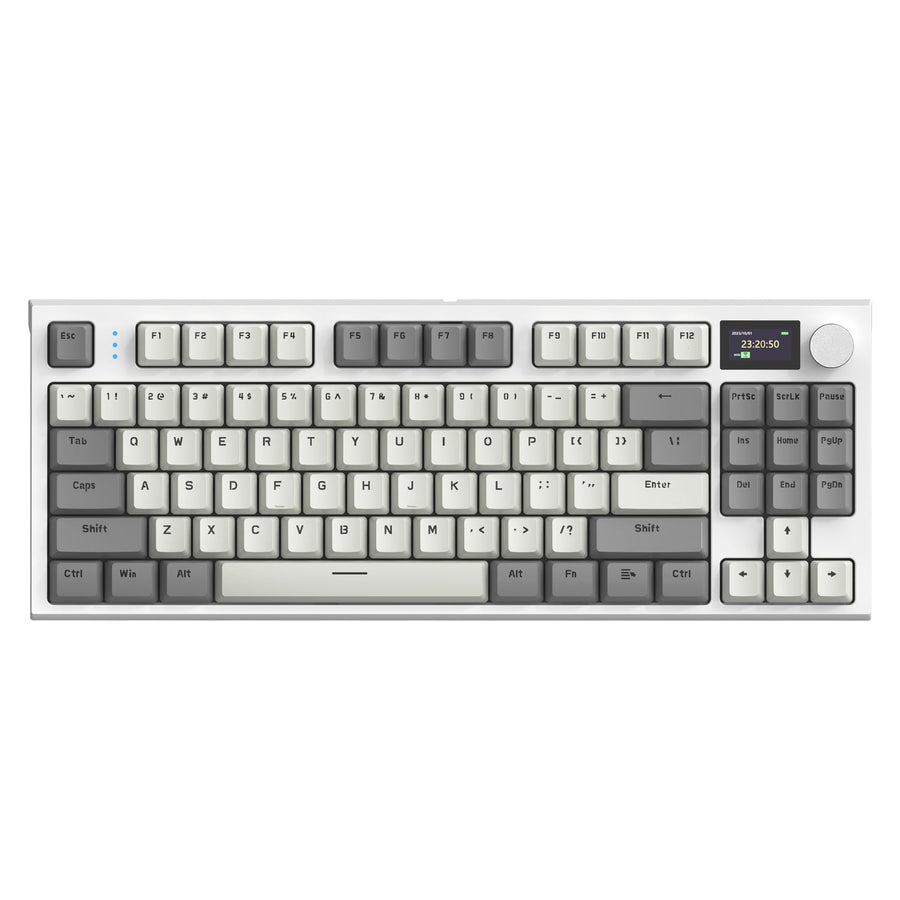
Full-size keyboards retain the numpad, F-row, and navigation cluster. TKL removes the numpad while keeping the other main key groups in place. A 65% keeps dedicated arrow keys in a tighter case but usually drops the physical F-row, and a 60% moves arrows, F-keys, and navigation behind a function layer. Because keyboard size labels are guidelines rather than fixed dimensions, always check a specific model's listed footprint before assuming it matches the category norm.
| Format | Direct key groups | Space trade-off | Best-fit condition |
|---|---|---|---|
| Full-size | Numpad, F-row, navigation, arrows | Largest footprint; least lateral mouse room | Numpad used daily, desk still fits it |
| TKL | F-row, navigation, arrows; no numpad | More mouse room than full-size | Numpad rarely needed, direct keys matter |
| 65% | Arrows; some access varies by model | More mouse room than TKL | Arrows essential, F-row can be layered |
| 60% | Alphanumeric block; other groups layered | Smallest footprint; most mouse room | Maximum mouse space, layers acceptable |
Apply the Choice Split
Compare the formats by the cost of each space-saving step. Removing the numpad can bring the mouse closer when you do not need it; moving from TKL to 65% saves more width while keeping arrows; moving to 60% saves the most surface but shifts more tasks to layers. If you don't normally use a numpad, choosing a keyboard without a numpad is a supported way to bring the mouse closer to the keyboard.
Match Key Loss to Gaming and Daily Work
The right compact size depends on which keys you use every day, not just how much desk space you have left.
Keep direct keys for work you do every day
- Frequent numpad use (data entry, spreadsheets, accounting) points to full-size or a separate numeric keypad.
- Frequent arrows, navigation, or F-row use points to TKL, unless width alone rules it out.
- Occasional access to any of these can often be handled through a layer, but base that call on your actual habits, not a guess.
Accept layers only when the workflow supports them
A 65% layout keeps dedicated arrows while pushing F-row and numpad access behind Fn combinations. A 60% typically moves arrows, F-keys, navigation, and numpad functions all behind layers. On a desk shared between gaming and work, prioritize whichever keys would otherwise interrupt your workday if you had to reach for a shortcut every time. If you want a refresher on what each key and shortcut actually does before deciding what you can live without, our keyboard function guide walks through the basics.
Verify the Exact Footprint Before Buying
A layout label like "65%" tells you roughly what to expect, but only the listed width, depth, and key layout confirm it will actually fit.
Run the final desk-fit check
- Write down the exact width and depth listed for the keyboard you're considering, in inches.
- Compare both figures against the remaining desk rectangle you measured earlier.
- Fit the cable path and any wrist rest into the same test; don't assume they'll squeeze in afterward.
- Confirm the exact key layout, especially on 65% and 60% models where arrow and navigation placement varies, and drop any model that fails either the physical or key-access check.
Bridge the measured result to a compact option
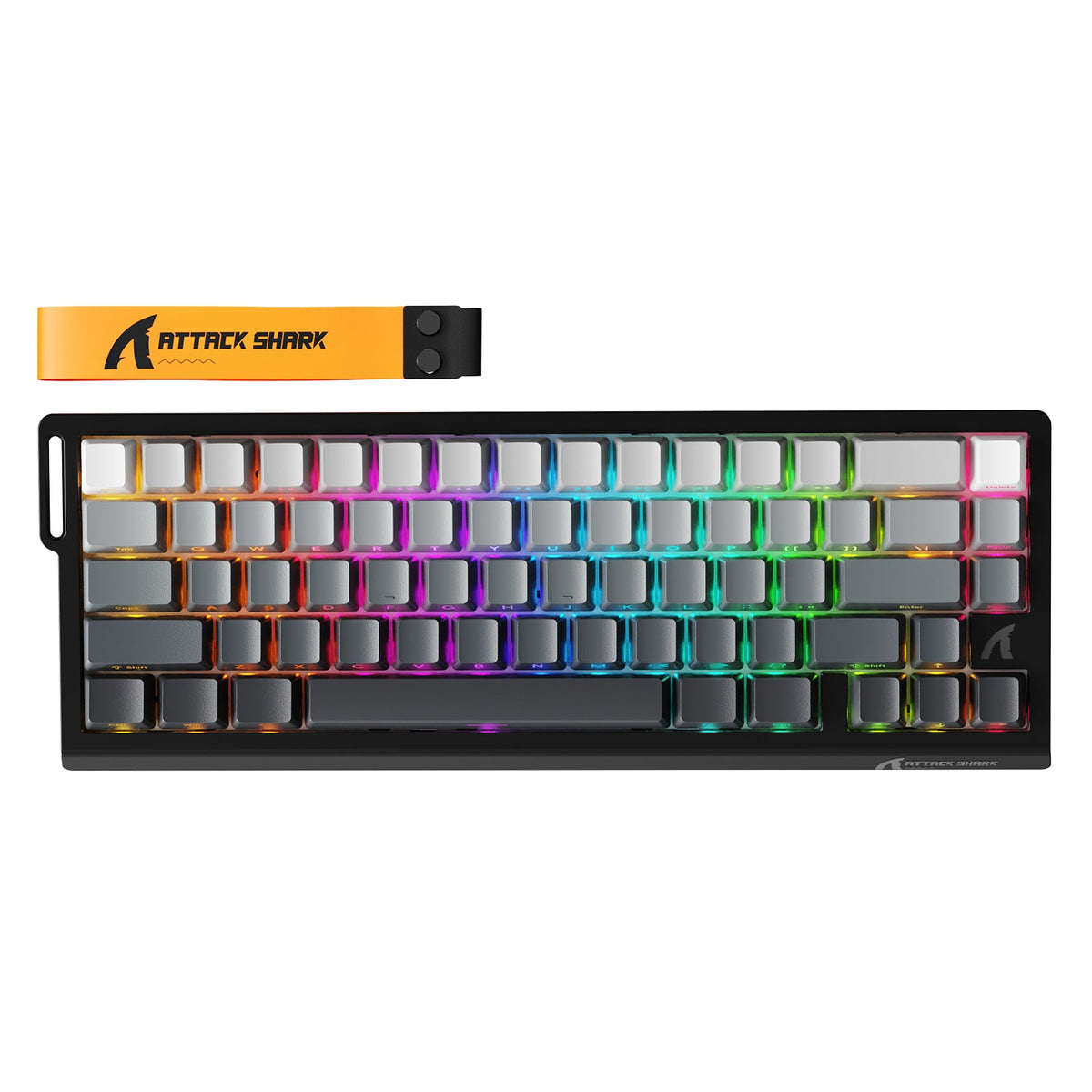
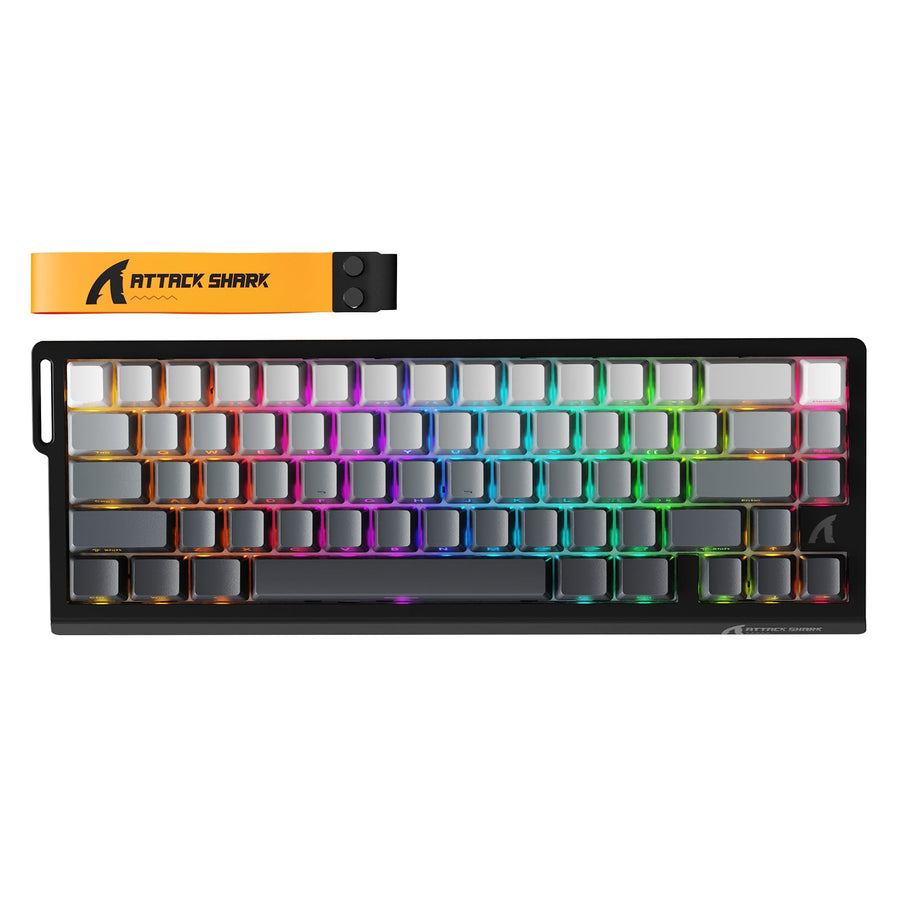
If your measurements point toward a compact layout that still keeps dedicated arrow keys, our 66-key compact option is one example to check against your worksheet. The ATTACK SHARK X68 PRO HE is listed at 66 keys with an approximate footprint of 12.8 x 4.6 x 1.6 inches. Measure those dimensions against your remaining rectangle before deciding it fits. It won't suit every small desk, so if the numbers don't line up, or you need direct numpad or F-row access, keep looking. For a broader side-by-side of formats, our keyboard size collection is worth a look once you know the footprint and layout you need.
Your gaming keyboard size choice is straightforward after these checks: choose the largest layout that fits both the remaining rectangle and your required keys. If a model fails the width or depth check, step down to TKL, 65%, or 60% only when its key trade-off still works for you. If no smaller layout preserves the keys you use, keep looking for a model or separate keypad that fits the measured space.
FAQs
How much mouse space do I actually need?
There is no universal minimum. Measure your comfortable WASD-to-mouse span from your normal seated position, with the mouse beside the keyboard. Example only: if the usable keyboard-and-mouse width is 24 inches and the keyboard uses 14 inches, the remaining mouse lane is 24 - 14 = 10 inches. That 10-inch result is not a universal threshold. Compare your actual lane with your measured span; if the mouse must sit farther out, test a smaller format unless the larger layout's keys are essential.
Is a 60% keyboard too small for daily work?
It depends on your workflow. A 60% works fine for gaming and lighter daily work if you're willing to use layers or remap keys for arrows, F-keys, and navigation. If you use the numpad, arrow keys, or F-row directly and often, a larger format like TKL or full-size will cause less friction during the workday.
How do I measure my desk depth correctly?
Measure from the back of the desk, or the monitor support area, to the front edge where you'll actually type. First subtract the monitor base's footprint, the cable path, and any wrist-rest space you plan to use. Compare the remaining depth with the exact depth listed for the keyboard you're considering, not just its size label.