


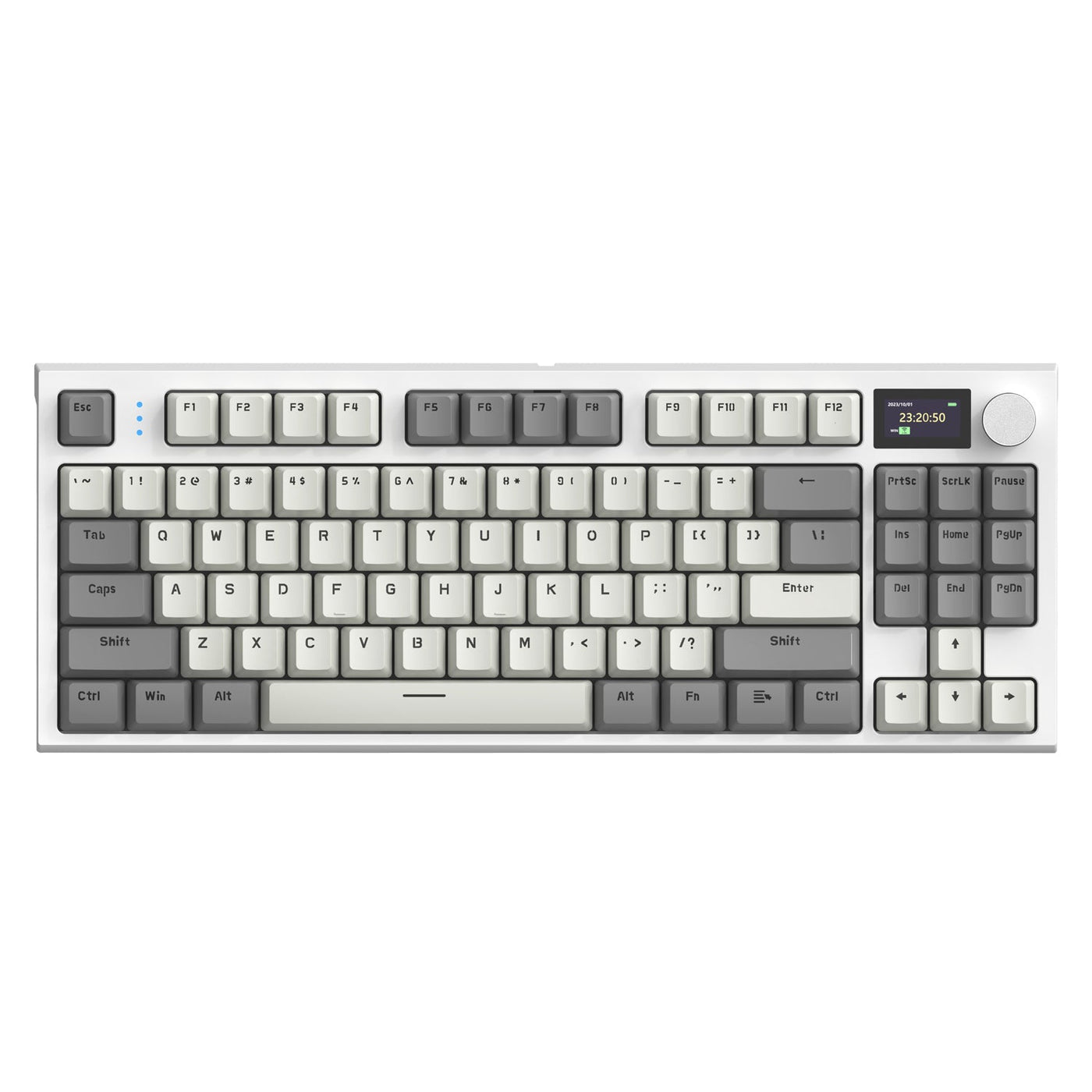
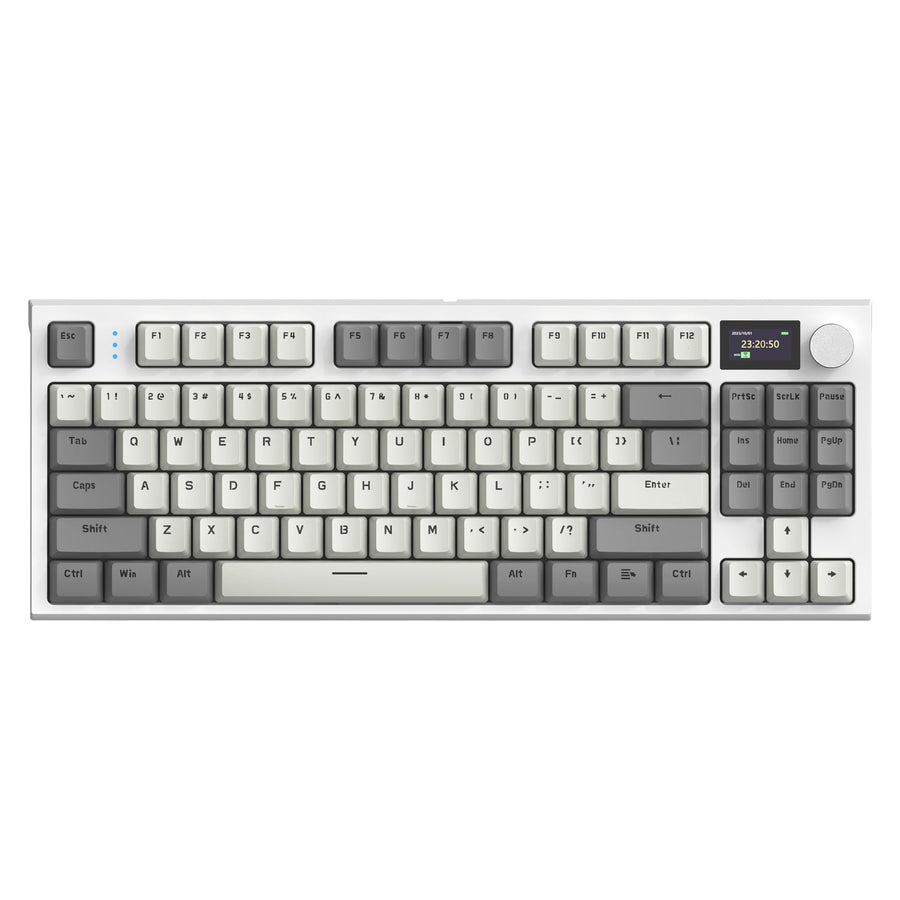
For a first PC, the keyboard choice affects both your remaining peripheral budget and how often you need to manage the desk. A cheap wireless keyboard can reduce cable clutter, while a wired mechanical keyboard can put more of the budget toward mechanical feel or a simpler connection. Remember that “wireless” describes how the keyboard connects, not how its switches feel, so treat those as separate decisions.

That split also affects your budget. Spending on wireless convenience you will not use, or on mechanical feel you do not need yet, takes money away from other first-PC parts and accessories that may matter more.
The Short Answer: Choose for Your Desk, Not the Wireless Label
If your keyboard is staying at one desk and gaming responsiveness matters most, a wired mechanical keyboard is the lower-friction choice. You plug it in once and never think about charging, pairing, or a receiver again. A cheap wireless keyboard still fits well when cable-free placement is a real need, such as clearing a desk for schoolwork or sharing a small space, but only once you confirm its exact Bluetooth, 2.4GHz, or wired-fallback modes support the way you plan to use it.

Do not let the wireless label stand in for a feel decision. A wireless keyboard can be just as mechanical as a wired one, with the same range of linear, tactile, or clicky switches. Connection type and switch feel are two separate purchases that happen to live in one product.
What Changes When the Keyboard Is Wireless or Wired
The main differences come down to connection method, charging, and how much desk flexibility you actually need. A compact side-by-side view makes the trade-off easier to scan than a long feature list.
| Decision factor | Wired mechanical keyboard | Cheap wireless keyboard |
|---|---|---|
| Connection | Direct USB cable, no pairing | Bluetooth, 2.4GHz receiver, or both, depending on model |
| Charging | None required | Needs a charging routine and battery monitoring |
| Desk placement | Fixed position, cable stays visible | Can be moved without a trailing cable |
| Gaming use | Predictable, no wireless variables | Depends on the exact connection mode chosen |
| Ownership friction | Lowest, just plug in | One added task: track charge and manage the receiver |
Connection and Gaming Use
A wired connection is the predictable option for a fixed desk, since you plug in once and the responsiveness stays the same every session. A wireless board may offer Bluetooth, a 2.4GHz receiver, or both, and gaming suitability depends on which mode the specific model actually supports, not the word “wireless” itself. One tested budget wireless mechanical keyboard used both Bluetooth and a 2.4GHz receiver, showing that dual connection modes exist even at low prices, but you still need to confirm which mode a given keyboard is built for before assuming it suits gaming. Treat headline polling-rate marketing the same way: it is a spec to verify, not an automatic beginner benefit.
Charging, Cables, and Desk Movement
Going wireless removes a visible keyboard cable and makes rearranging the desk easier, which matters if you regularly clear space for homework or a second activity. That convenience comes with a trade: you now have to charge the keyboard and accept the chance of a low-battery interruption mid-session. If that fallback matters to you, check whether the board still works over USB while charging; setup details like this are covered in a closer look at wireless keyboard USB setup. A wired board skips this task entirely because it draws power the moment it is plugged in.
Which Format Fits Your First-PC Scenario?
Your dominant use, not a general preference for “wireless” or “wired,” should decide the format. Three common first-PC scenes point in different directions, and each has a condition that can flip the recommendation.
Gaming-First at a Fixed Desk
Favor wired when the keyboard never leaves the desk and you want the fewest connection and charging variables during play. Wireless can still work here if cable-free placement genuinely matters to you, but confirm the exact model’s connection mode and any available gaming testing before relying on it for reaction-sensitive play.
School and Gaming in One Setup
Choose your switch feel and noise level separately from the connection format, since neither format guarantees a particular typing feel. Wireless earns real value here if you move the keyboard between a desk and a bag, or need to clear space often. If the keyboard mostly stays put and you would rather skip charging, wired remains the simpler pick.
Small or Shared Desks
Cable reduction and easy repositioning are the strongest reasons to go wireless on a tight or shared desk. Before buying, check that charging is convenient in that space and that a clicky switch will not bother roommates or family nearby. Do not choose wireless purely because it feels like the more advanced option; pick it because moving the keyboard or losing the cable solves a real problem.
Is Mechanical Feel Worth the Budget?
Mechanical feel is worth budgeting for once you know it changes how comfortable typing and gaming actually are, separate from whatever connection format you pick. A beginner can compare three basic switch feels without needing prior keyboard experience.
Match the Switch to the Room and the Work
Linear switches move smoothly from top to bottom with no bump. Tactile switches add a noticeable bump partway down the keystroke. Clicky switches add that same bump plus an intentionally audible click. None of these is universally better for a beginner: gaming feel, typing comfort, and how loud your room can tolerate a keyboard should all factor into the choice.
When Hot-Swap Support Changes the Choice
Hot-swap sockets let you install compatible replacement switches without soldering, which means you can change the feel later instead of committing forever on day one. Support for this is model-specific, so verify it separately from whether the board is wired or wireless; the two facts do not travel together. Treat hot-swap as a way to experiment over time, not a guaranteed way to save money, since you will still need to buy replacement switches.
How to Allocate the Remaining First-PC Peripheral Budget
Protect the rest of your first-PC essentials first, then put whatever is left in your keyboard budget toward the benefit you will actually use most. That is a more reliable rule than aiming for a fixed keyboard price or percentage, because neither is supported by a single formula that fits every build.
Start by totaling what your peripheral budget allows once the PC itself, a monitor, and any required accessories are covered. If choosing a pricier wireless or mechanical keyboard would force you to cut something your first PC actually needs, keep the keyboard simpler and protect that missing essential instead. Once your essentials are covered, direct the remainder toward your highest-use benefit: mobility and cable reduction if you move the keyboard often, mechanical feel if typing comfort matters most, or a plain wired connection if you just want a reliable, low-maintenance board.
This approach also leaves room for practical ownership costs, like a charging cable or a required USB receiver, without needing to guess at an exact dollar figure ahead of time.
Your Next Purchase Check
Once you know your scenario, turn it into an exact purchase with five quick checks.
- Name your dominant use: gaming-first, mixed school and gaming, or frequent desk changes.
- Decide whether the keyboard will stay fixed at one desk or move regularly.
- Choose the switch feel you want: linear, tactile, or clicky, based on comfort and room noise.
- Verify the exact model's connection modes, charging setup, and hot-swap support before adding it to your cart.
- Confirm the purchase still protects the rest of your first-PC budget and check the store's return window before buying.
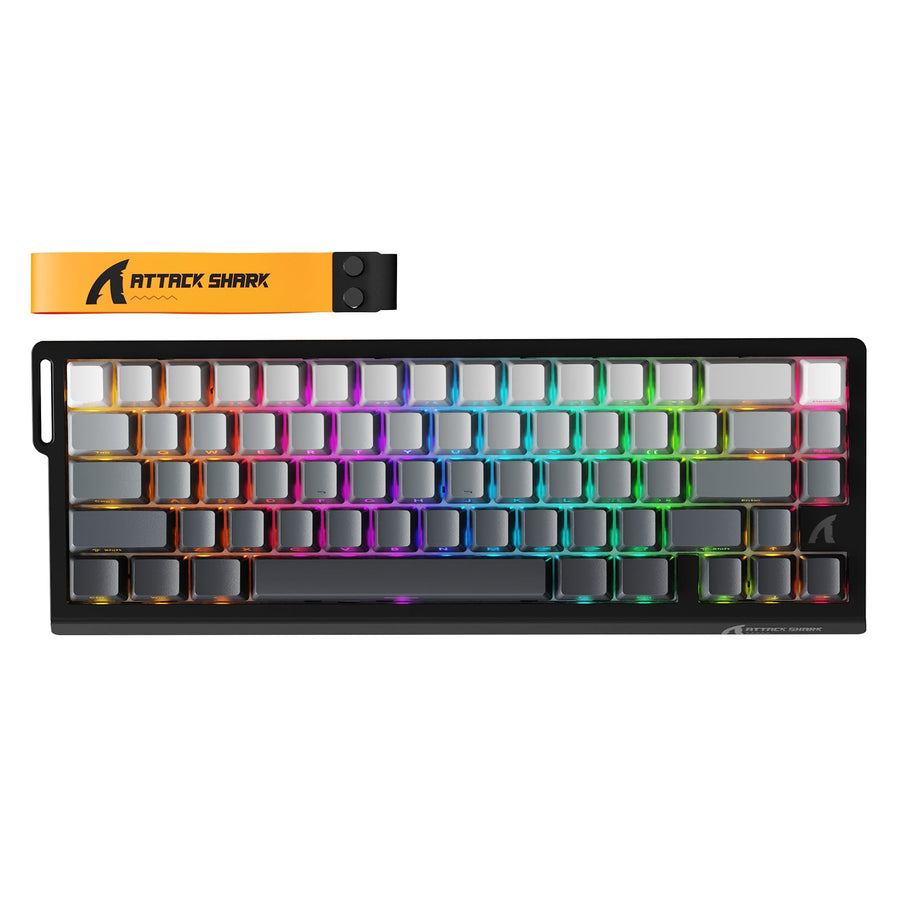
If your checklist points to a compact board that can move between wireless convenience and a wired fallback, our ATTACK SHARK K86 keyboard is built for that scenario: a 75% 86-key ANSI US layout with Bluetooth 5.0, 2.4G wireless, and USB-C wired connection, plus hot-swappable 3/5-pin sockets and included linear switches if you want to experiment with feel later. It is not a universal answer, so only consider it once your own checklist confirms the fit. For a broader look at wired, Bluetooth, and tri-mode boards side by side, our keyboard connectivity collection is a reasonable starting point.
FAQ
Is a Wired or Wireless Keyboard Better for Gaming Latency?
Neither format wins by default. A wired connection removes wireless variables entirely, while a wireless keyboard’s gaming suitability depends on the exact connection mode and available testing, not on assuming Bluetooth or 2.4GHz will behave the same across models. One review of a tri-mode wireless mechanical keyboard found that most players could not actually tell the difference between an 8,000Hz and a 1,000Hz polling rate, so treat headline polling numbers as a spec to verify rather than a guaranteed gaming edge.
Do Cheap Wireless Keyboards Need Regular Charging?
Yes. Any wireless keyboard adds a charging task that a wired board does not have. Battery experience varies a lot by model and by whether RGB lighting is on, so avoid assuming a typical battery interval; that same tri-mode review tied its rated battery figure to RGB-off conditions specifically. Check the exact model's charging behavior, including whether it can be used wired while charging, before relying on it daily.
What Is the Difference Between Linear, Tactile, and Clicky Switches?
For a quick choice, focus on feedback and sound: clicky adds an audible click, while linear and tactile differ mainly in whether you want a smooth press or a bump. If others share the room, choose a quieter-feeling option unless that extra sound is acceptable.
Does a Wireless Keyboard Mean It Cannot Be Mechanical?
No. Wireless describes the connection method, not the switch type. Plenty of budget wireless keyboards use full mechanical switches, so check the switch specification separately from the connection mode when comparing options.