


Choose a wired gaming mouse for a fixed desk, no charging, and the simplest ownership routine. Choose 2.4GHz wireless when cable-free movement matters more than battery and receiver upkeep. Choose Bluetooth for a compatible laptop, travel, or mixed-device setup when convenience matters more than gaming-focused responsiveness. A tri-mode mouse makes sense only if you will actually use all three connection options.

That is the practical answer to the wired vs wireless gaming mouse question. The right choice depends less on a universal speed winner and more on how you play, where you use the mouse, and which maintenance tasks you are willing to handle.
Choose a Wired Gaming Mouse, 2.4GHz Wireless, or Bluetooth for Your Setup
Start with the connection that solves your biggest daily problem. Wired eliminates charging and separate receiver management, 2.4GHz wireless eliminates cable drag for gaming-focused use, and Bluetooth favors portable convenience when both the mouse and device support it.
| Reader situation | Best starting choice | Tradeoff to accept |
|---|---|---|
| Fixed desktop and one primary device | Wired | You still manage cable routing and desk contact. |
| Cable drag is the main annoyance | 2.4GHz wireless | You add charging and receiver-placement tasks. |
| Gaming is the primary use and free movement matters | 2.4GHz wireless | The specific mouse and local setup still affect the result. |
| Casual, mixed-use, or laptop gaming | Bluetooth | Gaming responsiveness and compatibility remain model-dependent. |
| Laptop or travel use where USB ports matter | Bluetooth, if supported | Both the mouse and device must support it. |
| Home-and-laptop routine using several connection modes | Tri-mode | The extra flexibility is worthwhile only if you will use it. |
| Zero charging tolerance | Wired | A cable remains part of the desk setup. |
A 2.4GHz connection normally uses a USB receiver, while Bluetooth can avoid a separate dongle when the computer supports it. This wireless mouse comparison provides background on that receiver-versus-Bluetooth distinction, but it does not establish a universal performance winner.

Compare Gaming Responsiveness and Cable Control
For a gaming-first setup, compare wired and 2.4GHz wireless before treating Bluetooth as an equivalent option. Gaming-focused mice generally emphasize responsiveness, while convenience-oriented use places more weight on portability and simple device connection. The specific implementation and setup still determine the practical result.
Wired is the most straightforward route when you want to eliminate battery status, radio-link, and receiver-management variables. That makes it a strong fit for a fixed competitive or casual gaming desk, but it does not prove that every wired mouse is faster in practice. Technical gaming-mouse comparisons also frame responsiveness as a priority for gaming-focused models without proving a universal connection-mode winner.
2.4GHz wireless can eliminate cable drag while keeping the choice centered on gaming use. The receiver still needs sensible placement, and local wireless conditions can affect the experience. If the cable is only mildly inconvenient, try routing it with enough slack to reduce desk contact before replacing a working wired mouse. The wireless sensor and latency guide offers setup context for this check.
Bluetooth belongs in a separate convenience branch of the 2.4GHz vs Bluetooth gaming mouse comparison. It can be a reasonable choice for casual or mixed-use gaming when portability leads the decision, but choose wired or 2.4GHz separately when consistent gaming responsiveness is your central requirement.
Plan Charging, Battery, and Receiver Placement
Wireless convenience comes with two ownership tasks: maintaining a charging routine and positioning the receiver appropriately. Choose wired when those tasks would be a recurring annoyance, or choose wireless when cable-free movement is worth the added upkeep.
Decide Whether Charging Fits Your Routine
- Choose wired if charging or battery monitoring would interrupt regular play or work.
- Choose wireless if removing cable drag improves everyday use enough to justify charging.
- Choose tri-mode only after deciding whether wired will be a regular connection, a fallback, or simply an unused extra.
Battery duration and charging behavior vary by model, so the product page should provide those details before purchase. A wireless mouse is not automatically a better value if its convenience does not solve a problem on your desk.
Place the Receiver to Limit Avoidable Problems
Use this short setup sequence when a 2.4GHz connection does not feel consistent:
- Follow the mouse's connection instructions and use the supplied receiver arrangement.
- Inspect the receiver position and nearby wireless congestion in the actual desk setup.
- Reassess the connection mode before deciding that every wireless mouse is unsuitable.
These are troubleshooting steps, not guarantees of a specific range or latency result. If receiver placement remains a concern, use the setup delay checklist while keeping the model's instructions as the deciding reference.
Match the Connection to Travel and Device Switching
Device context changes the value of each connection. Desktop-only buyers should prioritize cable control or charging-free simplicity, while laptop and travel users may value a connection that avoids a separate USB receiver. Bluetooth can support that convenience when both the mouse and device are compatible, a distinction also reflected in portable mouse comparisons.
For a single desktop, choose wired if no maintenance matters most, or 2.4GHz if cable-free movement is the priority. For a laptop or travel setup, consider Bluetooth when occasional gaming shares space with general use. If gaming is the main requirement, use the model's supported 2.4GHz or wired mode instead of assuming Bluetooth will behave the same way.
Tri-mode is most useful for a genuine home-and-laptop routine. Before buying, confirm the operating-system support, available modes, switching behavior, and included accessories for that specific model. Our mouse support resources can be a useful starting point for model-specific software and support information, but the product page remains the source for the mouse's actual connection options.
Browse the Catalog by the Connection You Chose
Once you have selected wired, 2.4GHz, Bluetooth, or tri-mode, open the matching product path and confirm the exact connection details before purchase. The catalog can narrow the search, but it should not replace model-level information about modes, cables, receivers, charging, or device support.
Start With the Connection Requirement
Use the selector above first, then inspect the product page for the exact modes, cable arrangement, receiver details, and charging method. A sensor or polling-rate label should not decide the purchase while the connection requirement is still unresolved.
Review Tri-Mode Options for Mixed Setups
The tri-mode collection is the natural browsing path when you need flexible home-and-laptop use. It is a collection path, not evidence that every listed model has identical specifications.
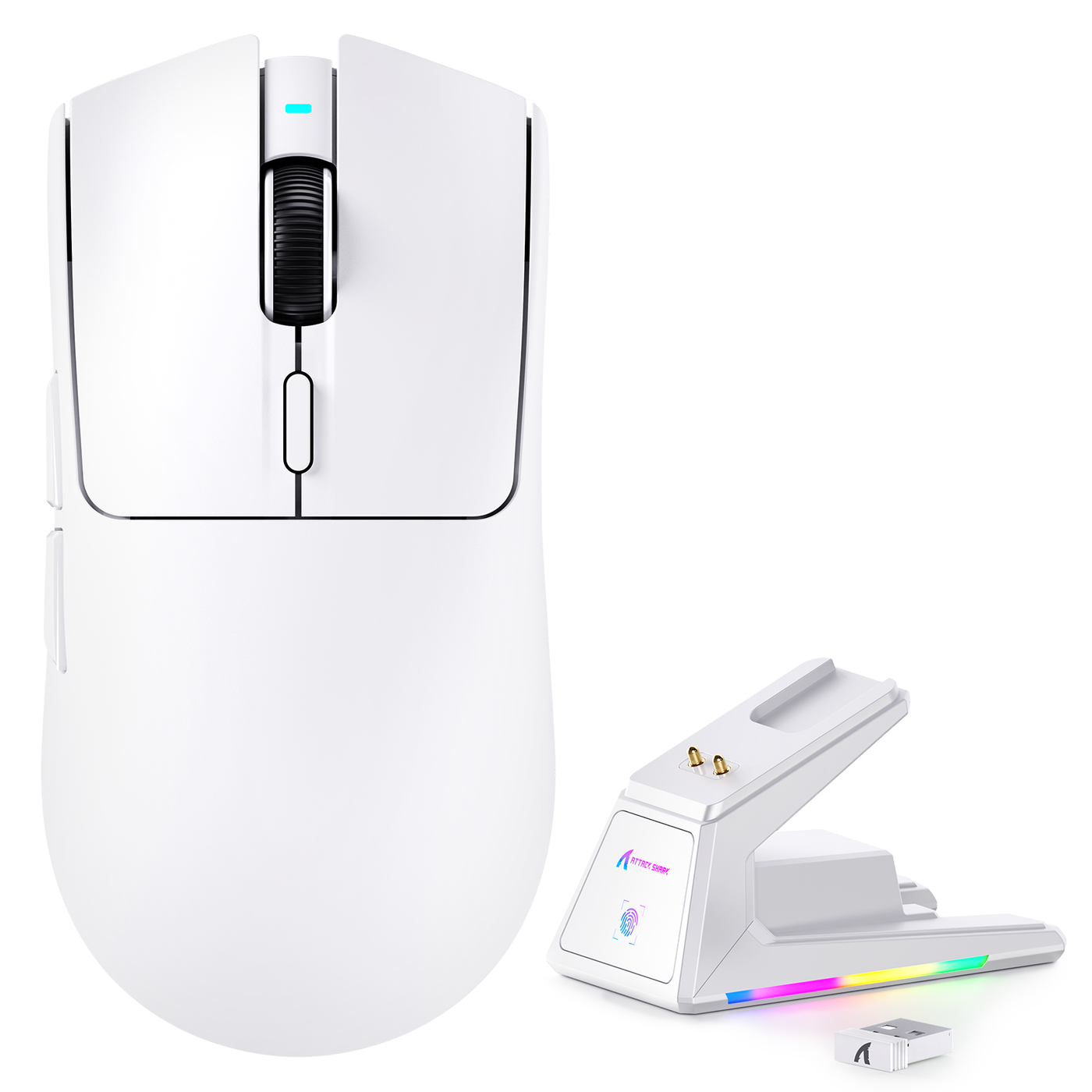
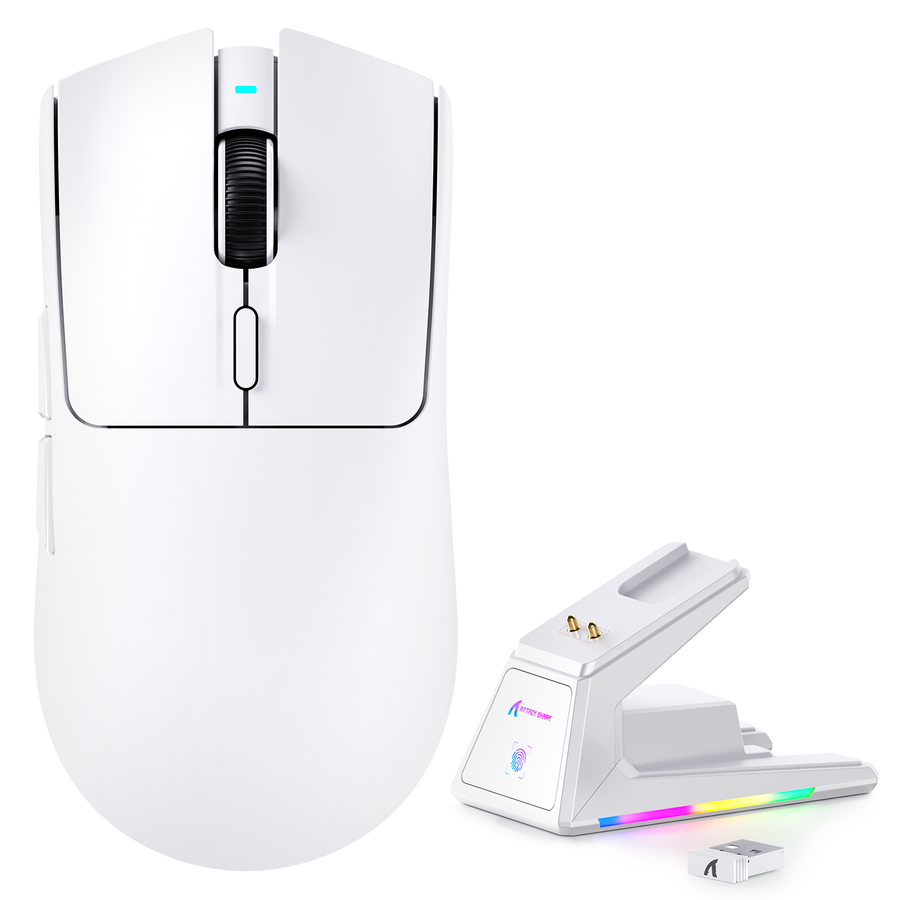
The ATTACK SHARK X1 product details list 2.4GHz wireless, USB-C wired, and Bluetooth connectivity for that model. Those listed modes make it a concrete example to inspect when you want tri-mode flexibility, but they do not establish a universal fit for every buyer.
Check Model-Level Details for Other Wireless or Cable-First Choices
Individual product pages are the right place to confirm whether a mouse supports wired, 2.4GHz, Bluetooth, or a combination of modes. The R2 product details list wired, 2.4GHz, and Bluetooth 5.2 connectivity for that model. Treat those as model facts, not as broader claims about performance, charging, or ownership.
For the wired or wireless mouse for gaming decision, select the mode that matches your desk and maintenance tolerance, then use the product page to confirm the exact implementation. That produces a more reliable purchase than choosing based on a universal claim about speed.
FAQs
These answers address the main connection, maintenance, and device-compatibility questions that come up after choosing a gaming mouse.
Are wireless gaming mice as fast as wired mice?
A gaming-focused 2.4GHz mouse can be a suitable gaming option, but the specific mouse and setup matter. Choose wired when eliminating battery and receiver variables is more important than removing cable drag. There is no supported universal latency figure here that makes every wired or wireless mouse interchangeable.
Is Bluetooth good enough for gaming?
Bluetooth can be good enough for casual or mixed-use gaming when portability and compatible-device convenience lead the decision. If gaming responsiveness is the main requirement, compare the model's 2.4GHz or wired mode separately and confirm that the mouse and device support the intended connection.
Is a wireless gaming mouse worth the extra cost?
Wireless can be worth paying more for when cable-free movement or device flexibility improves daily use. If the mouse stays at one desk and charging adds no value, wired is the more direct choice. Compare the ownership benefits you will actually use rather than assuming wireless convenience is worth the premium.
Can I use a tri-mode mouse without charging it?
A tri-mode mouse may support wired use, but its charging arrangement and mode behavior vary by model. Use the wired connection regularly if charging management is unacceptable, and inspect the product page to confirm how that specific mouse handles wired and wireless operation.