


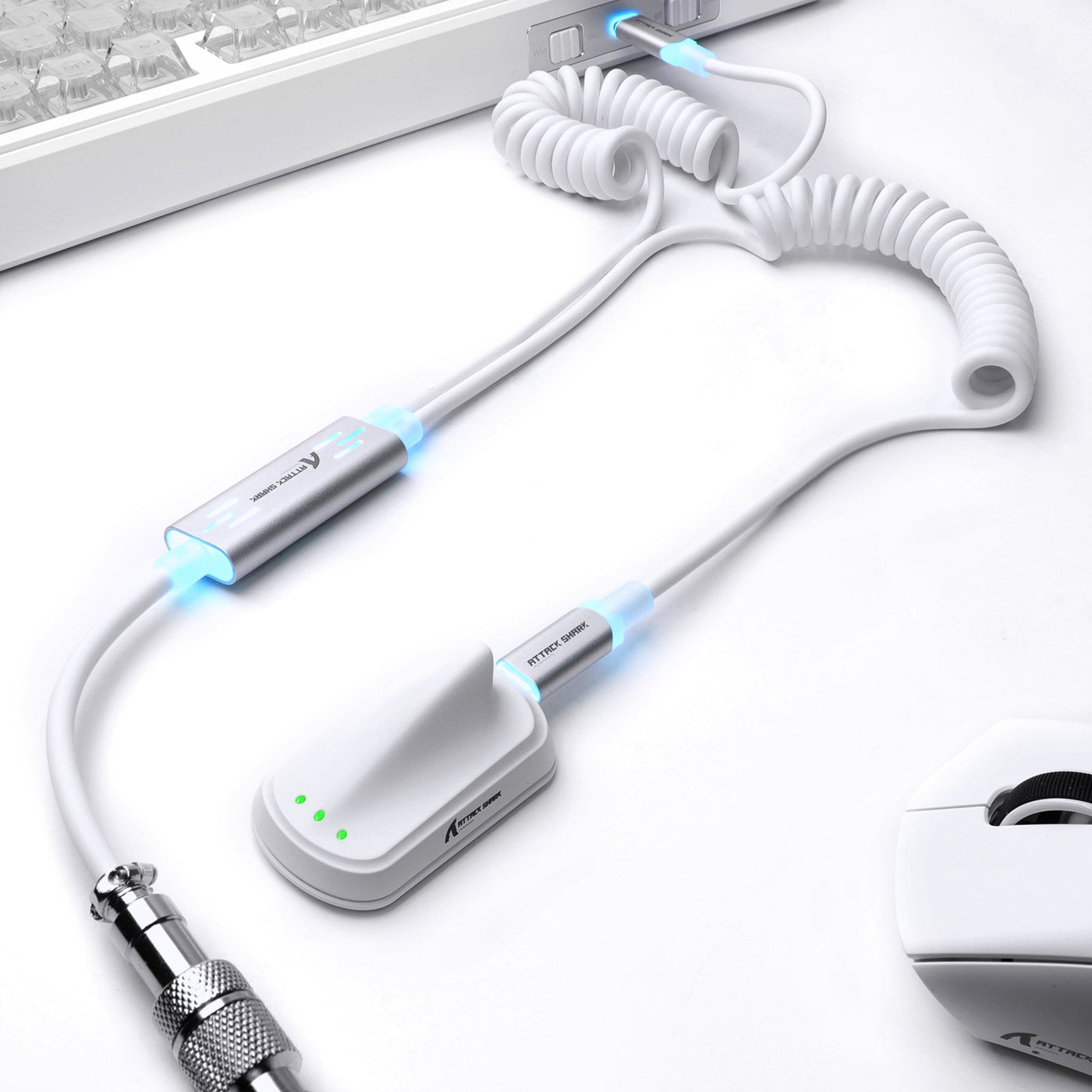
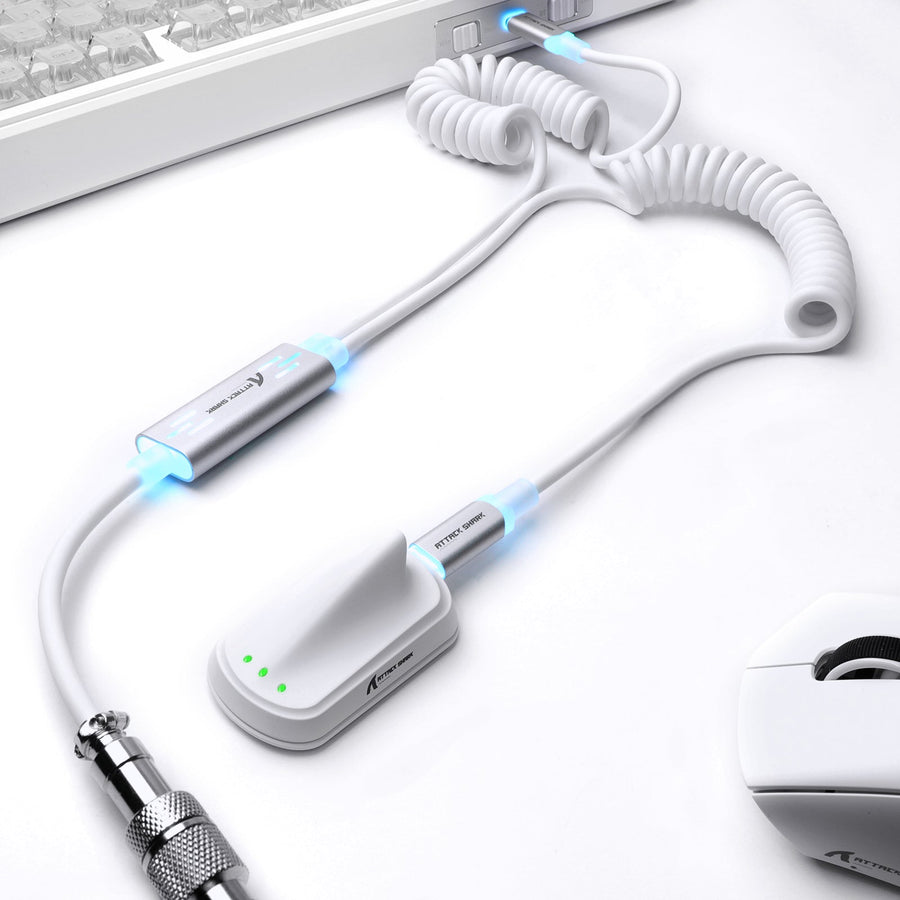
A bad USB cable can affect keyboard performance, but it is only one possible cause of disconnects, missed inputs, unstable RGB, or keyboard input delay. A loose connector, damaged cable, hub, USB port, firmware problem, keyboard fault, or PC issue can create similar symptoms. Before buying a coil cable, reseat both ends, connect the keyboard directly to the computer, try another port, and compare a known-good compatible cable. If the problem changes when you move or replace the cable, it becomes a stronger suspect—but the test still does not prove it is the sole cause.

Signs the USB Cable May Be the Problem
A cable or connection path deserves closer attention when the symptom changes with movement, reseating, or a different USB path. Constant problems with one key are more suggestive of a switch, firmware, software, or keyboard-electronics issue than a cable fault.
| Symptom clue | Why the cable is plausible | What else to check |
|---|---|---|
| The keyboard disconnects or reconnects unexpectedly | A loose plug, damaged conductor, or poor connection may interrupt the device path | Try another direct USB port and check the hub, adapter, and keyboard socket |
| Inputs or lighting change when the cable moves | Movement can change pressure at a connector or a damaged bend point | Stop using visibly damaged wiring; test a known-good compatible cable |
| Missed inputs occur across the whole keyboard | A connection-wide interruption can affect more than one key | Check the port, hub, firmware, keyboard, and PC before assigning blame to the cable |
| RGB flickers while typing still works | Lighting may be more sensitive to an unstable connection or device implementation | Reseat both ends, bypass the hub, and investigate firmware or keyboard electronics if only RGB remains affected |
| One key consistently fails | A cable is a weaker explanation for a single, repeatable key-specific fault | Inspect the switch, key mapping, firmware, and keyboard hardware |
| The same issue remains across several ports and known-good cables | The fault does not appear to follow the original cable | Shift attention to the keyboard, firmware, software, computer, or shared USB behavior |
Microsoft's keyboard troubleshooting guidance includes unplugging and reconnecting the device and trying another USB port. That makes a cable and port change a reasonable first check for bad USB cable keyboard issues, not proof that every interruption comes from the cable.

How Cable Design Can Affect a Wired Keyboard
Cable construction can affect connection considerations, but no single feature—thickness, length, shielding, certification, or coiling—proves lower latency or stable input. Fit, condition, connector security, and the complete USB implementation matter more than appearance alone.
Length and Conductor Construction
Length and conductor construction affect routing, bend behavior, and the design margin of a USB connection. A longer cable is not automatically slow, and a thicker cable is not automatically faster; the relevant limits depend on the USB generation, cable design, connectors, and device implementation. Avoid treating one gauge or length as a universal keyboard rule. The USB-IF cable and connector guidance is useful quality context, but it is not a keyboard-latency test.
Shielding, Connectors, and Strain Relief
For a practical inspection, focus on the parts that experience wear:
- Connector fit: Both ends should seat fully without unusual looseness. A USB-C plug that fits physically may still not meet a keyboard's complete data or layout requirements.
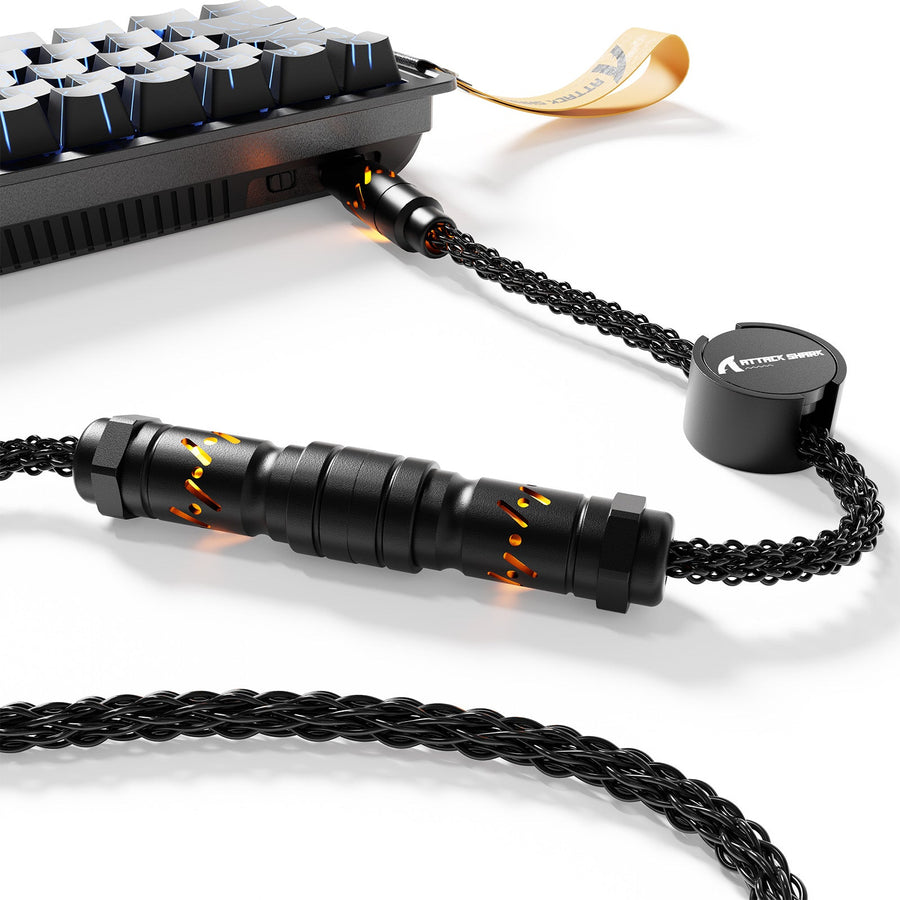
- Bend points: Look closely where the cable exits the plug, detachable connector, or aviator-style junction. Repeated sharp bending or side-loading can make connection problems more likely.
- Strain relief: A good transition at the connector can reduce stress during normal routing, but it does not repair an internally damaged cable.
- Shielding and signal integrity: USB-C specifications treat shielding and signal integrity as design considerations. They do not show that a particular cable will reduce keyboard cable latency or fix a faulty keyboard.
- Device-side implementation: The keyboard socket, detachable layout, firmware, and host port remain part of the connection path. A cable cannot correct every weakness elsewhere.
What Coiling Changes—and What It Does Not
A coiled cable changes how the cable occupies the desk and how much tension appears when it is stretched. It does not, by itself, provide evidence of better response or coiled cable signal quality. Independent, controlled comparisons showing that coiling alone lowers keyboard latency or guarantees reliability are not available here.
| Consideration | Straight cable | Coiled cable |
|---|---|---|
| Routing | Usually simpler for a direct, low-tension path | Can keep slack organized near the keyboard or host |
| Tension | Easier to lay flat and size by available reach | Can pull sideways if the coil is stretched too far |
| Portability | Often packs with fewer shape constraints | May be convenient for a customized desk setup but takes more space |
| Appearance | Minimal and understated | Adds a visible customization element |
| Compatibility check | Confirm both ends, data use, and detachable layout | Confirm the same items plus usable coil reach and tension |
Treat coiling as a routing and appearance choice. If you are researching a coiled keyboard cable, do not treat its shape as a latency specification.
A Quick Test to Isolate the Fault
Test one variable at a time so you can see whether the symptom follows the cable, port, hub, keyboard, or computer. These steps narrow the next suspect; they do not independently prove a single root cause.
- Record the symptom. Note whether all keyboard input stops, only RGB flickers, the device reconnects, or the issue appears only when the cable moves. Stop if the wiring is visibly split, hot, or exposing conductors, or if a connector appears unsafe to use.
- Reseat both ends. Shut down the active test if needed, unplug the keyboard, inspect the plugs and socket, then reconnect firmly. Test the same setup again before changing anything else.
- Bypass the shared path. Remove the hub, dock, or adapter and connect the keyboard directly to the computer. Microsoft's USB-C troubleshooting guidance recommends direct connection and trying the supplied cable when investigating a USB-C path.
- Change the direct port. Use another suitable port on the computer while keeping the original cable and keyboard unchanged. If the symptom disappears, the original port or shared path becomes the next suspect—not automatically the cable.
- Compare a known-good compatible cable. Keep the keyboard and computer fixed, then substitute a cable that is confirmed to meet the keyboard's requirements. If the problem follows the original cable, replacement becomes more reasonable. If it follows the keyboard, continue with firmware, software, keyboard hardware, or PC checks.
- Use another computer when available. Apple's general USB connection troubleshooting also uses another cable, port, or computer to help isolate the connection path. Restore the original setup only after recording what changed.
| What changes when tested | Next suspect | Practical next action |
|---|---|---|
| The symptom follows the cable | Original cable or its connectors | Replace it with a compatible cable and retest |
| The symptom follows one port or hub | Port, hub, dock, or adapter | Use a direct alternate port and inspect the shared path |
| The symptom follows the keyboard across cables and ports | Keyboard hardware, firmware, or layout | Check firmware, software, socket, and manufacturer support |
| The symptom appears only on one computer | PC configuration, drivers, or USB behavior | Test updates, settings, and another computer before buying a cable |
| Only RGB remains unstable | Lighting path, firmware, or keyboard electronics | Separate lighting from key input during further checks |
For related fault-isolation ideas, see these hardware troubleshooting checks, while keeping in mind that wireless symptoms are not identical to wired USB faults.
When a Coil Cable Upgrade Makes Sense
A replacement is sensible when visible damage or a controlled cable swap strongly implicates the original cable. Choose a coil cable for verified fit, usable reach, tension, and desk routing—not as a guaranteed latency or reliability upgrade.
| Scenario | Replacement case | Cable priorities | Do not buy yet if… |
|---|---|---|---|
| Visible conductor, plug, or strain-relief damage | Replace rather than continue using the damaged cable | Safe condition, correct connectors, return coverage | The damage is only cosmetic and testing points elsewhere—or the connector is unsafe and needs support first |
| The issue follows the original cable in a controlled swap | A compatible replacement is a reasonable next step | Data suitability, secure fit, reach, and device-side layout | The substitute was not confirmed compatible, so the test result is inconclusive |
| The keyboard passes testing but the desk needs cleaner routing | A coil cable may suit the layout | Coil reach, tension, connector position, and appearance | The coil must be stretched sideways or puts force on the keyboard port |
| The keyboard still fails with several known-good cables and ports | A cable is unlikely to be the first fix | Firmware, keyboard hardware, PC, hub, and software checks | You are buying based only on a "fast," "8KHz," or premium-looking label |
Once testing identifies a cable need, you can compare a dual-connector aviation cable, a coiled keyboard cable, or broader keyboard accessory options. These links are starting points for checking current specifications; the available product information does not establish measured latency, universal compatibility, or a guaranteed fix.
Final Checks Before You Order a Replacement
Before adding a replacement to your cart, verify the cable's actual connector arrangement, data use, physical reach, coil tension, and current seller policies. USB-C shape alone is not a complete compatibility check: Apple's USB-C cable guidance shows that cables with the same connector family can differ in intended capabilities.
Use this seven-point checklist:
- Connector type: Confirm the keyboard-side and computer-side ends, including any detachable or proprietary layout.
- Data requirements: Check the keyboard manual or current product specifications for the required USB data connection. Do not infer capability from the plug shape or a polling-rate label alone.
- Detachable layout: Verify whether the keyboard uses a recessed USB-C socket, a two-part connector, or another arrangement that affects plug clearance.
- Reach: Measure or estimate the keyboard-to-PC route. Leave enough length for normal placement without pulling the plug sideways.
- Coil tension: If choosing a coil cable, check that it can rest naturally rather than staying stretched across the desk.
- Current compatibility: Review the exact product page and specifications for your keyboard and host setup. A custom aviator cable may be worth inspecting, but its page—not its title—must answer the fit question. You can also browse magnetic switch keyboards only when comparing the broader setup, not as proof of cable compatibility.
- Returns and warranty: Check the current return window, exclusions, warranty terms, and who pays return shipping before ordering. Those terms can change, so do not rely on a general assumption.
If the replacement does not change the symptom, return to the port, hub, firmware, keyboard, and computer checks instead of assuming the new cable failed. The goal is a verified connection path, not simply a more elaborate-looking cable.
Keyboard Cable Troubleshooting FAQs
Can I Use Any USB-C Cable With a Mechanical Keyboard?
No. Physical USB-C fit does not prove the cable has the data capability, clearance, connector arrangement, or device compatibility your keyboard requires. Check the keyboard manual and the current cable specifications first, then test the cable directly without a hub. If the keyboard uses a recessed or unusual detachable socket, clearance matters as much as the plug name.
Does a Coiled Cable Reduce Keyboard Latency?
Not based on coiling alone. There is no independent comparison here that establishes a latency advantage for coiled cables over straight ones. Compare fit, construction, measured product evidence when available, and routing instead. If you are investigating coiled keyboard cable connection problems, check whether stretching the coil changes the symptom before judging its performance.
Why Does My Keyboard RGB Flicker While the Keys Still Work?
Start by reseating both ends, bypassing any hub, changing the direct port, and testing a known-good compatible cable. If key input remains stable while lighting alone flickers across those tests, the next suspects are firmware, lighting control software, or keyboard electronics. That symptom split is more useful than assuming the cable is defective.
Can a USB Hub Cause the Same Keyboard Problems as a Bad Cable?
Yes, a hub or adapter can be part of the same shared connection path. Connect the keyboard directly to the computer and change only that variable first. If the issue disappears, test the original hub setup again after checking the cable; do not label the cable as faulty until the hub and direct path have been separated.
When Should I Replace a Keyboard USB Cable Instead of Repairing It?
Replace it when conductors or connectors are visibly damaged, when a compatible cable swap makes the problem follow the original cable, or when continued use raises a reliability or safety concern. There is no universal time-based replacement schedule. If the fault persists with multiple known-good cables, ports, and computers, investigate the keyboard or PC instead.