


Protect your mouse and keyboard budget first, then decide whether you need wireless features or extras. A workable rule for a gaming keyboard and mouse setup is to reserve about 35% for the mouse, 40% for the keyboard, 15% for a wireless connection if you want one, and 10% for accessories. That split is a starting point, not a hard rule. Adjust it based on whether you care most about FPS accuracy, need to share a desk with schoolwork, or simply want a reliable everyday combo. The sections below explain how to adjust the split, when wireless is worth the cost, and what to buy first if you can't get everything at once.

Start With the Priority Rule for a Fixed Budget
Use this gaming keyboard-and-mouse setup worksheet to assign each dollar before comparing products.
Set the Core-Versus-Convenience Order
Your mouse and keyboard handle the important work: aiming, clicking, and typing. Features such as wireless charging and lighting effects don't change how well you play or type. Set aside enough money for both core devices before adding anything else. If you mainly play fast-paced shooters, direct extra dollars toward the mouse. If you type long documents or code between matches, put more toward the keyboard instead.
Run One Illustrative Budget Calculation
The table below applies the 35/40/15/10 split to three example budgets. Treat each dollar figure as a planning example, not a current retail price.
| Total Budget | Mouse (35%) | Keyboard (40%) | Connection (15%) | Accessories (10%) |
|---|---|---|---|---|
| $75 | $26 | $30 | $11 | $8 |
| $125 | $44 | $50 | $19 | $12 |
| $200 | $70 | $80 | $30 | $20 |
If you're buying wired hardware, you can remove the connection line. Redirect that 15% to the mouse and keyboard in roughly the same 35:40 ratio. For a $125 wired setup, rounded to whole dollars, that works out to about $53 for the mouse and $60 for the keyboard, with $12 for accessories a wired setup might need, such as a mousepad.
Choose the Split by Primary Use
The base worksheet sets a starting point, but your main use case determines where the next dollar should go. FPS gaming, school or work, and everyday use each favor a different split.
FPS: Prioritize Control and Mouse Room
For competitive shooters, direct the first extra dollars to the mouse once you have a functional keyboard. Aim and quick, low-sensitivity movements depend on how the mouse fits your hand and how much desk space you have. A compact keyboard is a reasonable trade if you don't need its missing keys, since smaller keyboard layouts leave more room for mouse movement while full-size boards retain a number pad and extra dedicated keys. Skip wireless or cosmetic add-ons if paying for them would force you to buy a smaller or less suitable mouse or keyboard.
School/Work Plus Gaming: Protect Daily Usability
When one setup covers homework, remote work, and gaming, protect the keys and layout you use every day before paying for gaming-specific features. Choose the smallest layout that still includes every key your coursework or job requires. Giving up a number pad or navigation cluster to save desk space can create daily friction if you actually use those keys. Wireless is worth the reserved budget mainly if you move between a desk and a couch or often switch between a laptop and a desktop.
Everyday Use: Keep the Split Balanced
If no single task dominates your day, keep the mouse and keyboard allocations close to the 35/40 baseline instead of heavily favoring one device. Simple wired hardware or a broadly compatible connection option usually works well here because wireless convenience isn't solving a specific problem. Wait on rapid-trigger switches, magnetic actuation, or extensive RGB customization until a real task shows you need them.
Use the Matrix to Decide Where the Next Dollar Goes
Once you set the base split, use this matrix to decide where extra money should go. Spend when a category is blocking your chosen use case; save when it isn't.
| Category | Spend More When | Save or Defer When |
|---|---|---|
| Mouse | Grip, size, or aim accuracy limits FPS performance | Your current mouse already fits your hand and game |
| Keyboard | A required key, layout, or feature (such as rapid trigger) is missing | The layout already covers every key you use weekly |
| Connection | You need a cable-free desk or often switch between machines | Wired already works with your setup and desk layout |
| Accessories | A mousepad, cable, or receiver is genuinely missing | You already own a usable pad, cable, or receiver |
A bigger spec on paper isn't a reason to spend more. Pay extra only when a category is preventing you from doing what you need.
Choose Wired or Wireless Without Paying for the Wrong Convenience
Wired is the safer default for a strict budget, while wireless is worth the cost when it solves a specific problem. Decide which case applies before paying extra for a receiver or battery.
Choose Wired When the Budget or Simplicity Comes First
If your main goal is to keep more money for the mouse and keyboard themselves, wired is the simplest option. It eliminates charging, receivers, and pairing. Budget for a cable separately only if the device you're buying doesn't already include the one it needs.
Pay for Wireless When Convenience Has a Clear Job
Reserve money for wireless when it solves a concrete problem, such as keeping your desk tidy, moving the keyboard and mouse between a desk and a couch, or switching between two computers. Before paying more, confirm that both devices support a 2.4GHz gaming mode rather than Bluetooth alone. Gaming wireless should use a 2.4GHz connection instead of relying on Bluetooth for consistent response. A wireless combo also trades cable-free convenience for battery management and possible connection interruptions, so check that the receiver, charging method, and available USB ports on your PC fit your setup before spending the extra money.
Separate Must-Haves From Upgrades You Can Defer
Once you've picked a scenario and connection type, judge each remaining choice by what you need to solve now and what can wait. This keeps you from paying for features your current use case doesn't need.
Must-Have Before You Buy
- A mouse shape and size that fits your hand and grip style comfortably
- A keyboard layout that includes every key your main tasks require
- A connection mode that works with your PC and desk setup
- Money for any mousepad, cable, or receiver you genuinely don't already own
Nice-to-Have for a Later Upgrade
- Wireless convenience, if a wired setup already handles your tasks well
- Rapid-trigger or magnetic-switch features, unless you're focused on a use case that benefits from them
- RGB lighting, premium materials, or extra software customization that doesn't solve a current problem
Don't defer anything that affects basic fit or daily comfort, such as a mouse shape you already know bothers your hand. Everything else on the nice-to-have list can wait for a later upgrade.
Buy in Stages and Protect the Upgrade Path
If you can't buy the whole setup at once, buy the device blocking your priority first. Then fill in the rest without buying duplicate accessories.
- Identify which device is limiting your main use case: the mouse for FPS accuracy, the keyboard for required school or work keys, or both if neither works well right now.
- Buy that device first. If both the mouse and keyboard are inadequate, choose a bundle that fits your priority profile instead of buying twice.
- Add the second core device next. First check whether you already own the mousepad, receiver, or cable included in your budget plan. Redirect that reserved money toward the second device if you do.
- After using the setup, upgrade the one part that still feels like a bottleneck, whether that's mouse fit, a missing key, or connection convenience.
Match a Supported Attack Shark Bundle to the Constraint
Match a bundle to the layout, connection, or key count you actually need, not the other way around. Check the current price and individual fit before deciding that any option is affordable.
For a Wired HE Keyboard and Tri-Mode Mouse
For an FPS-focused buyer who wants a 66-key wired keyboard with rapid trigger and a tri-mode mouse, we offer the X68 HE and X3 bundle. The keyboard uses magnetic switches with an adjustable actuation point from 0.1mm to 3.4mm over USB-C, while the X3 mouse supports wired, 2.4G, and Bluetooth 5.2 connections. Confirm that this wired keyboard and tri-mode mouse combination matches the priority profile you chose before ordering.
For Tri-Mode Convenience on Both Devices
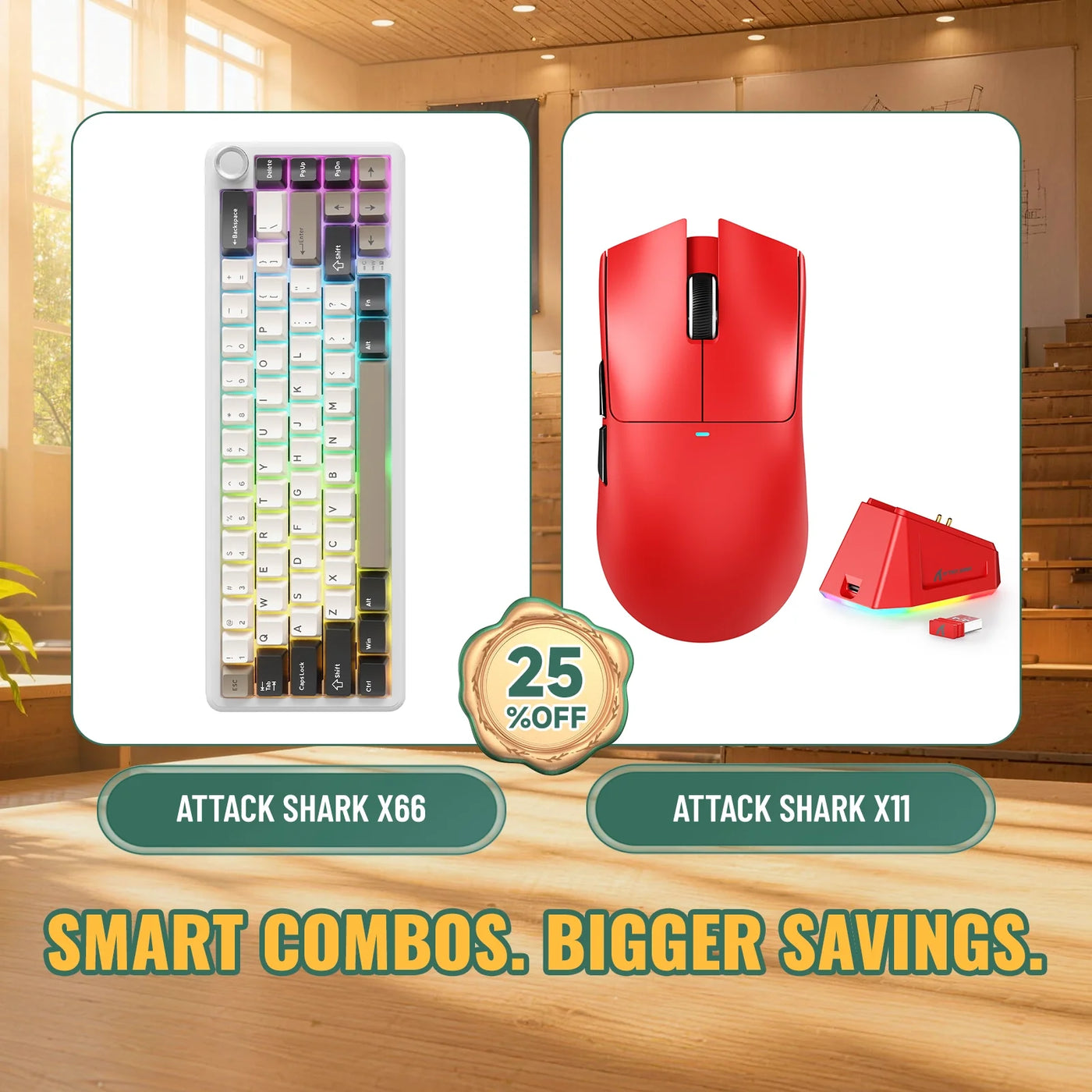
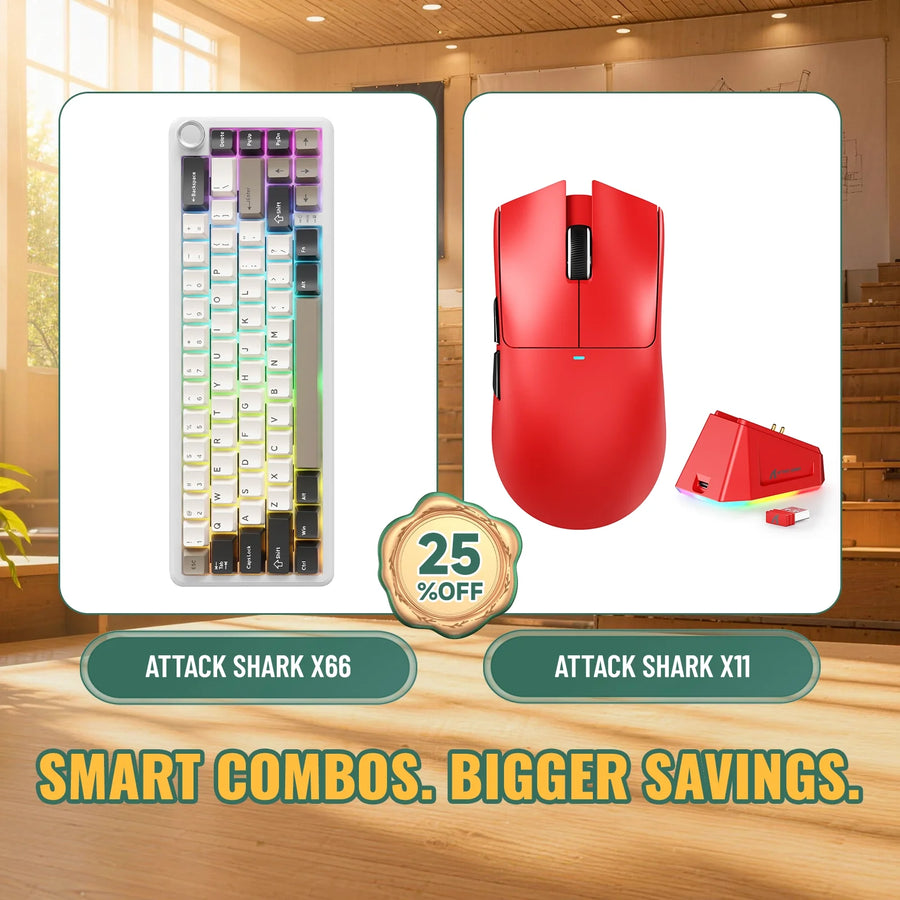
If you need 2.4G wireless, Bluetooth, and USB-C wired options on both devices, our X66 and X11 wireless bundle offers all three modes on the keyboard and mouse. The keyboard has a 66-key layout with hot-swappable switches. It's a good fit if you don't need a number pad but do want flexible connection options for switching between devices.
For More Dedicated Keyboard Keys
Buyers who need more keys than a 66-key layout offers can consider our X75 and R3 bundle. It pairs an 81-key aluminum keyboard with tri-mode wireless, Bluetooth, and USB-C connections and a magnesium alloy mouse. The larger layout suits school, work, or gaming tasks that regularly use extra function or navigation keys, not just competitive play.
Choose the profile that matches your limiting task, spend first on the device that solves it, and treat wireless and extras as conditional costs. Then confirm the layout and connection fit before ordering a bundle for your gaming keyboard and mouse setup.
FAQs
What Makes a Good but Cheap Gaming Keyboard-and-Mouse Setup?
A cheap combo is worth buying when both devices match your chosen layout, connection, and use case. If either one forces a compromise, it isn't a good deal even at a low combined price. Once you know the current prices, compare the combo's total cost with the cost of buying each device separately.
Should I Buy a Gaming Mouse or Keyboard First?
Buy the mouse first for FPS use if your current keyboard still works. Buy the keyboard first for school or work if typing comfort or a required key is the real limitation. If neither device works well right now, a balanced bundle that covers both may be the more practical first purchase.
Is a Wireless Gaming Keyboard and Mouse Setup Worth the Extra Cost?
Wireless is worth prioritizing when a cable-free desk or the ability to switch between workstations solves a real problem for you. For competitive gaming, check 2.4GHz support, receiver requirements, and charging needs first. Bluetooth-only convenience doesn't offer the same responsiveness as a dedicated gaming wireless mode.
Is Buying Quality Peripherals Important for Gaming?
Quality matters when it affects fit, required keys, or connection reliability, for example, a mouse shape that suits your grip or a keyboard layout with every key you use. It matters less for features your main use case will never use, such as extra software customization or premium materials you don't need.