


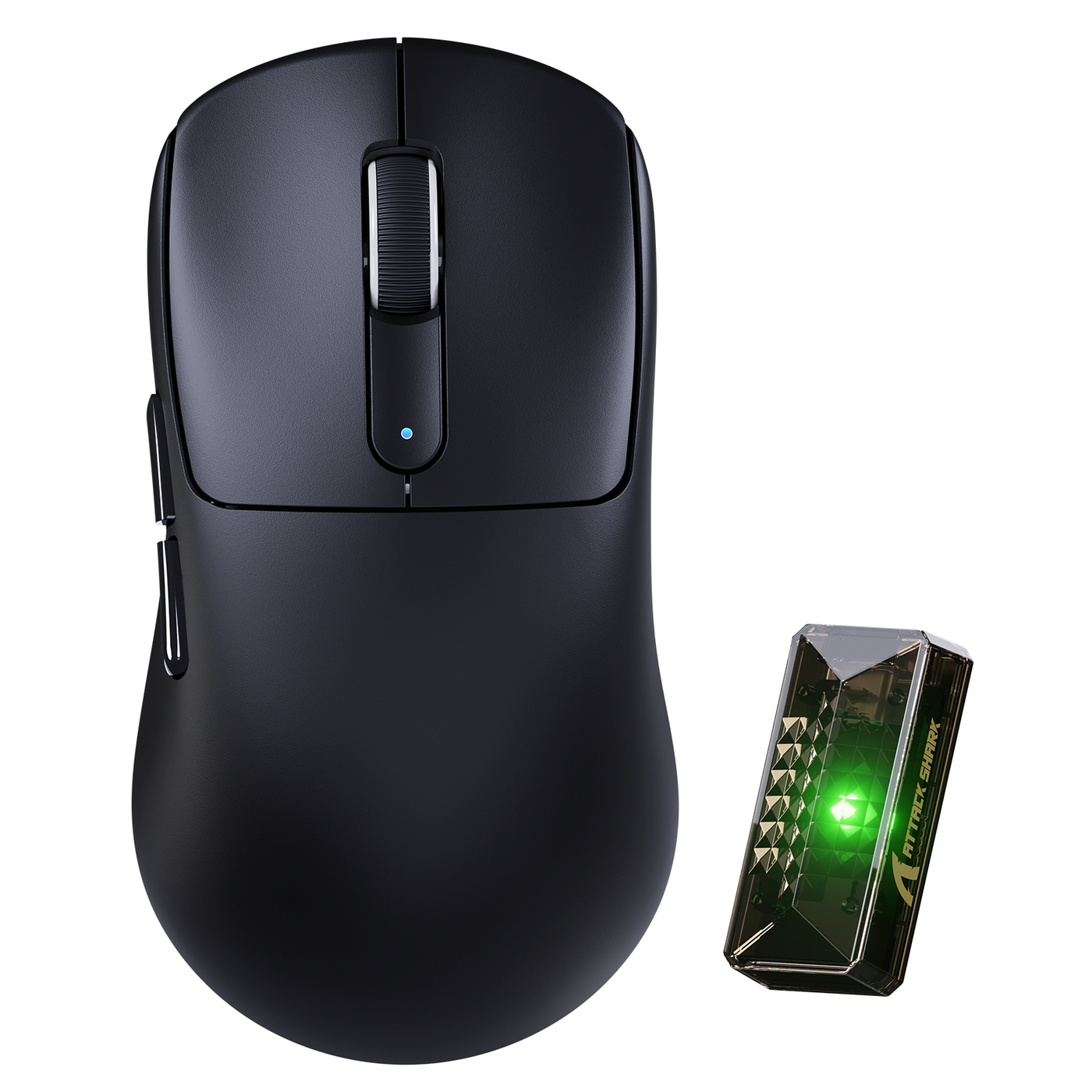
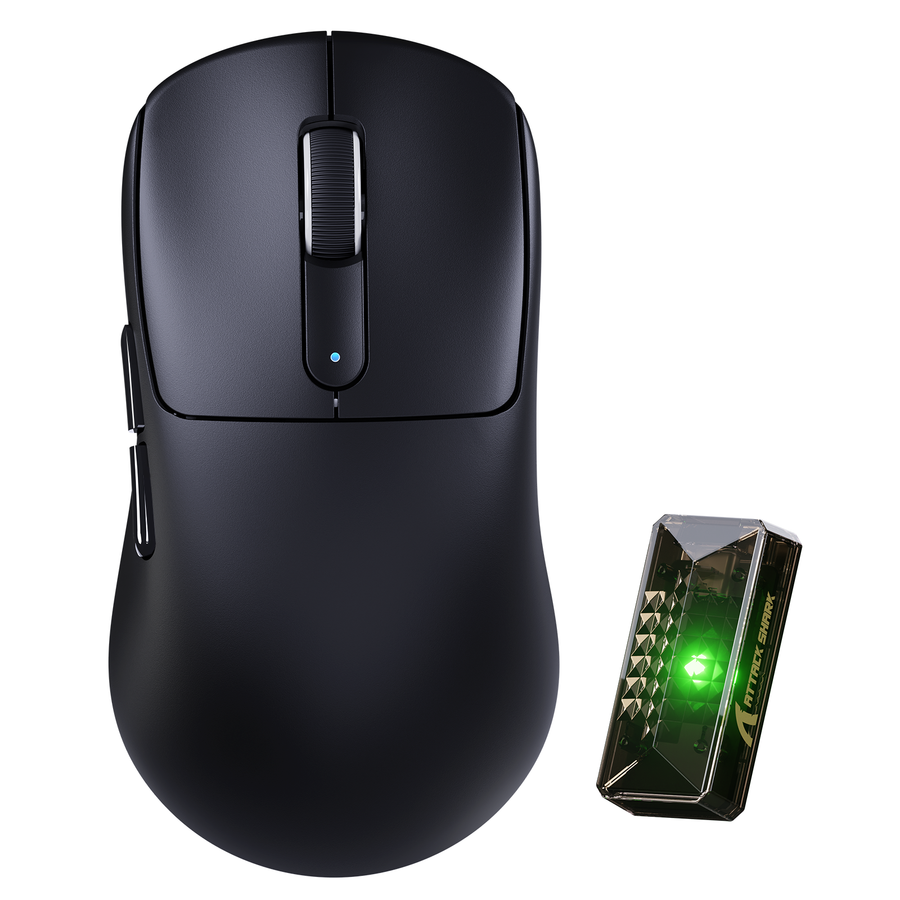
For the best Bluetooth mice for gaming, choose Bluetooth when laptop, office, and travel convenience matter most and the host already supports it. Choose 2.4GHz when desktop gaming or timing-sensitive play is the priority and a receiver is easy to use. If one mouse must cover both roles, a tri-mode model offers the most flexibility by combining Bluetooth, 2.4GHz, and wired use. The exact mouse, host device, firmware, settings, and game still determine how each mode feels.

Bluetooth vs. 2.4GHz: Finding the Best Bluetooth Mice for Gaming
The right default depends on what you do most often, not on a universal ranking of wireless standards. Use this quick scenario selector before comparing individual mice.
| Main use case | Better default | Decision reason |
|---|---|---|
| Laptop, office, or travel | Bluetooth | Fewer accessories and simpler everyday use when the host pairs reliably |
| Casual gaming and mixed laptop use | Bluetooth | Convenience usually matters more than performance-focused tuning |
| Desktop gaming | 2.4GHz | A dedicated receiver is practical when gaming responsiveness is the priority |
| FPS or other timing-sensitive play | 2.4GHz | The more conservative starting point when connection consistency matters |
| One mouse for desktop and laptop | Tri-mode | Covers a gaming-first receiver connection and a Bluetooth-friendly secondary setup |
Bluetooth is a strong choice for a supported laptop or travel setup, especially when preserving an open port matters more than using a receiver. 2.4GHz is the safer starting point for gaming-first use, but the result can vary with the mouse implementation, host, interference, and your sensitivity to inconsistent input. A tri-mode Bluetooth gaming mouse is worth considering when you genuinely need both connection roles, rather than paying for a third mode you will never use.

Why 2.4GHz Is Usually the Safer Gaming Default
For fast-paced games, start with 2.4GHz when timing consistency matters more than avoiding a receiver. This is a conservative recommendation, not a measured promise that every 2.4GHz mouse will outperform every Bluetooth model.
Fast-Paced and Competitive Games
Use 2.4GHz first for FPS, competitive multiplayer, and other games where small timing differences are personally noticeable. A dedicated receiver can be the more predictable choice for this type of session, but the connection label alone does not determine the result. Sensor behavior, polling settings, firmware, host conditions, and game settings also matter.
If the mouse supports both connections, test the same game with your actual host and settings. That gives you a practical answer without relying on an exact latency figure that is not available for every model. If Bluetooth feels inconsistent or you begin prioritizing competitive play, switch your default to 2.4GHz.
Casual Gaming and Mixed Use
Bluetooth remains a reasonable choice for strategy games, browser games, slower-paced titles, productivity, and mixed laptop use when pairing is dependable. It can also be the better everyday mode when avoiding a receiver matters more than performance-focused tuning.
Move to 2.4GHz when you notice inconsistent input or when your gaming routine shifts toward timing-sensitive play. Keep connection mode separate from polling and sensor specifications as well. A high polling specification does not establish identical behavior across Bluetooth, 2.4GHz, and wired modes. If you are comparing those specifications, review the available polling-rate options as a category follow-up, not as proof that one wireless mode is universally faster.
Check Ports, Pairing, and Battery Before You Buy
Setup friction can override your initial mode preference. Before choosing a Bluetooth gaming mouse for a multi-device routine, confirm the host connection, receiver path, recovery behavior, charging method, and exact model-specific battery information.
Laptop, Tablet, and Travel Setup
For a laptop or travel setup, use this three-step check:
- Confirm that the host supports Bluetooth and pair the mouse before leaving home. Most Windows devices include Bluetooth, but a computer without built-in Bluetooth may need a separate USB Bluetooth adapter, as explained in Microsoft's guide to pairing a Bluetooth device in Windows.
- If you prefer 2.4GHz, confirm that the receiver can use an available port or a practical adapter or dock path. Bluetooth avoids the mouse's 2.4GHz receiver only when the host already supports Bluetooth.
- Test wake-from-sleep recovery, charging, and device switching before travel. In Windows, pairing mode, range, low battery, drivers, and device-level issues can affect reconnection, so Microsoft's Bluetooth troubleshooting guidance provides a useful recovery reference.
This check applies specifically to Windows guidance. Support and switching behavior can differ on other operating systems and devices, so the mouse's documentation remains the deciding source for those setups.
Desktop Gaming Setup
For a desktop, prioritize a convenient receiver position and easy access to charging. Use this short setup check:
- Keep the 2.4GHz receiver accessible without creating a port or placement problem.
- Compare the exact model's published battery information and charging method with the length of your planned sessions.
- If nearby USB hardware contributes to wireless interference, use the USB wireless interference guide for placement troubleshooting.
- For rechargeable gear, use wireless mouse battery care as a maintenance follow-up, not as a model-specific runtime test.
There is no supported universal battery winner between Bluetooth and 2.4GHz. Active features, power settings, firmware, and the model itself can change runtime. Keep Bluetooth as a secondary mode only when the mouse and host pair reliably. If you mainly play at a desktop and have an accessible receiver port, 2.4GHz should remain the default connection.
When a Tri-Mode Gaming Mouse Makes Sense
A tri-mode mouse makes sense when one device must cover a gaming desktop, a Bluetooth-friendly laptop or travel setup, and possibly wired fallback. It addresses a real device-switching need, but it does not prove that all three modes have identical performance, polling behavior, battery use, or recovery.
Use this purchase path:
- Identify the device where gaming matters most. If it is a desktop with a practical receiver port, make 2.4GHz the primary mode. If it is a supported laptop used mainly for work and travel, make Bluetooth the primary mode.
- Identify the secondary role. A second laptop, limited-port computer, or frequent travel routine makes Bluetooth more valuable. A stationary setup may not need tri-mode at all.
- Decide whether timing-sensitive play is a real requirement. If it is, verify documented 2.4GHz and wired operation before treating Bluetooth as the main benefit.
- On the exact product page, compare the connection modes, switching method, charging method, battery information, receiver details, and return terms. The mode names alone do not establish how the mouse behaves in each connection.
The following are documented tri-mode examples, not a ranked list. They show how to compare the best Bluetooth mice for gaming based on documented connection paths and fit limits:
| Model | Documented connection facts | Fit boundary |
|---|---|---|
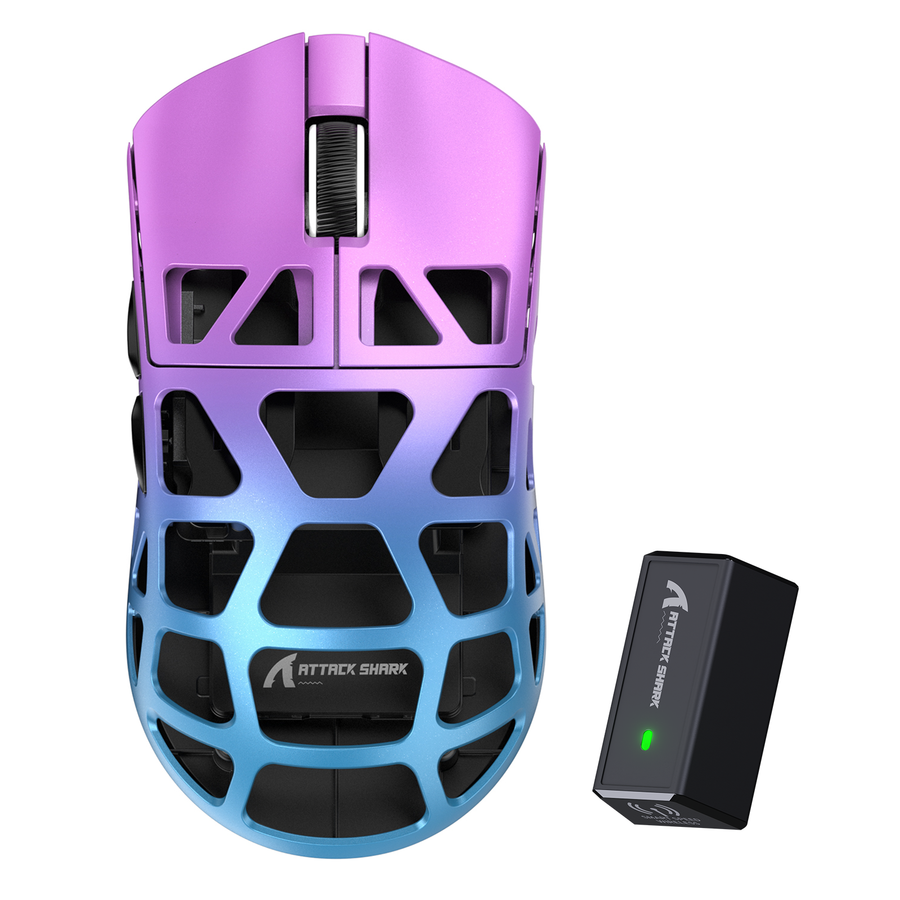
| ATTACK SHARK V5 | Wired, Bluetooth, and 2.4GHz; 53g ± 3g; 500mAh battery; 8,000Hz wireless and 1,000Hz wired polling | Fits buyers who want a lightweight gaming mouse with all three connection paths. The listed polling figures do not assign a Bluetooth-specific rate. |
| ATTACK SHARK X1 | Wired, 2.4GHz, and Bluetooth; 53g ± 3g; charging dock; documented 125 to 1,000Hz polling range | Fits buyers who value a charging dock and tri-mode flexibility. The supplied facts do not establish mode-specific battery runtime or performance. |
| ATTACK SHARK X11 ULTRA | Wired, 2.4GHz, and Bluetooth 5.2; 63g; carbon-fiber composite build | Fits buyers seeking documented tri-mode connectivity with a carbon-fiber build. The supplied facts do not establish mode-specific polling, battery runtime, or performance. |
Choose from tri-mode gaming mice when both connection roles are part of your routine. For a single-use setup, buying a simpler mouse that matches your primary mode may avoid unnecessary switching and accessory decisions.
Start with Bluetooth for a supported laptop, office, or travel routine, and start with 2.4GHz for desktop gaming or latency-sensitive play. Choose tri-mode when both scenarios are genuine needs, then compare the exact product's connection behavior, charging, battery information, and return terms before checkout.
Frequently Asked Questions
These answers cover the practical mode, laptop, and switching decisions that matter when choosing a wireless gaming mouse. The specific host and model still determine the final experience.
Is Bluetooth or 2.4GHz better for gaming?
2.4GHz is the safer starting point for latency-sensitive gaming because it is the more conservative choice when timing consistency matters. Bluetooth favors laptop, office, and travel convenience when peak responsiveness is not the priority. The specific mouse and host can change the result.
Can a Bluetooth gaming mouse work for FPS games?
Yes, a Bluetooth gaming mouse can be usable for FPS games, but suitability depends on the mouse, host, firmware, settings, and your sensitivity to inconsistent input. If FPS is your main use and the mouse supports both modes, begin with 2.4GHz and test Bluetooth rather than assuming either mode will feel identical.
Do I need a dongle to use a Bluetooth gaming mouse?
You do not need the mouse's 2.4GHz receiver when the computer already supports Bluetooth. If a Windows computer lacks built-in Bluetooth, a separate USB Bluetooth adapter may be required. That makes host support the first travel and laptop check.
Which mouse mode is best for a laptop?
Bluetooth is usually the better laptop default when the laptop supports it and portability or limited ports matter most. Use 2.4GHz when the laptop can accommodate the receiver and gaming responsiveness is the priority. A tri-mode mouse fits a laptop user who also needs a dedicated gaming connection elsewhere.
How do I avoid reconnection problems when switching between Bluetooth and 2.4GHz?
Pair the mouse, test charging, and switch between both hosts before traveling or adopting a daily multi-device routine. Test wake-from-sleep recovery as well. If reconnection fails, pairing mode, range, battery level, drivers, and device behavior are practical areas to examine first.