


Experiencing an audio delay where you hear a gunshot seconds after pulling the trigger ruins immersion and competitive gameplay. This lag occurs when the digital audio signal struggles to reach your device efficiently. Whether you are dealing with PC audio sync issues or console connectivity problems, this guide breaks down the root causes.
Read on to learn how to properly apply gaming audio delay fixes and precisely how to fix wireless headset audio lag to restore your competitive advantage.

Wireless Audio Latency: Bluetooth vs 2.4GHz Latency
To understand why your audio is delayed, you must look at how the data is transmitted. Wireless audio is entirely dependent on the connection protocol your hardware utilizes. Analyzing Bluetooth vs 2.4GHz latency reveals exactly why some devices perform flawlessly while others fail during fast-paced gameplay.
The Limitations Of Bluetooth Technology
Bluetooth was originally designed for transmitting small amounts of data over short distances, primarily for phone calls and casual music listening. Standard Bluetooth connections process audio using codecs like SBC or AAC. This encoding and decoding process takes time.
Standard Bluetooth connections typically suffer from a latency of 150 to 200 milliseconds. In a fast-paced shooter, a 200-millisecond delay means you hear enemy footsteps long after the enemy has already entered your screen. Unless your hardware specifically supports aptX Low Latency (which brings the delay down to around 40 milliseconds), Bluetooth is mathematically too slow for competitive gaming.
The Superiority Of 2.4GHz Connections
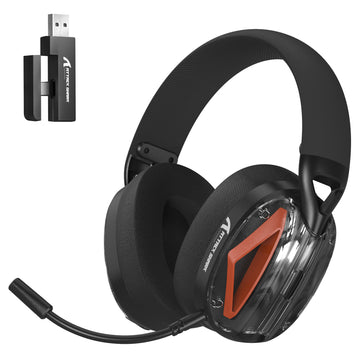
High-end gaming equipment bypasses Bluetooth entirely. Instead, these devices utilize a dedicated 2.4GHz radio frequency. This connection requires you to plug a specific USB transmitter (dongle) into your computer or console. Because the manufacturer controls both the transmitter and the receiver, they can optimize the audio compression specifically for speed. This custom protocol reduces the audio delay to roughly 15 to 20 milliseconds. This fraction of a second is entirely imperceptible to the human brain, providing a true real-time audio experience.
Common Causes Of Headset Audio Delay
If you are already using a dedicated 2.4GHz connection and still experiencing desync, the problem stems from environmental factors or software misconfigurations. To effectively fix wireless headset audio lag, you must identify these common hardware and software bottlenecks.
Distance And Physical Obstructions
Wireless signals degrade rapidly when passing through physical objects. If your PC is located under a thick wooden desk, or if your console is hidden inside a closed metal entertainment center, the audio signal will struggle to reach your headset. This weak signal causes packet loss. When audio data packets are lost, the receiver has to request them again, resulting in a noticeable audio stutter or delay.
Outdated Firmware And Drivers
Manufacturers frequently release firmware updates to optimize how fast their USB dongles process audio data. If your headset is running on outdated firmware from three years ago, it may not be communicating efficiently with your modern operating system. Furthermore, outdated motherboard audio drivers can introduce processing latency before the signal even leaves your computer.

Wireless Interference In Your Setup
Your gaming environment is filled with invisible radio waves. Because most consumer electronics operate on the same frequencies, signal traffic jams are incredibly common. Managing this traffic is one of the most effective gaming audio delay fixes available.
USB 3.0 Broadband Noise
One of the least known but most severe causes of interference is USB 3.0 ports. When a USB 3.0 port transfers data, it emits broadband noise that heavily interferes with the 2.4GHz spectrum. If you plug your audio dongle directly adjacent to a high-speed external hard drive, the signal will degrade instantly.
Peripheral Clashing
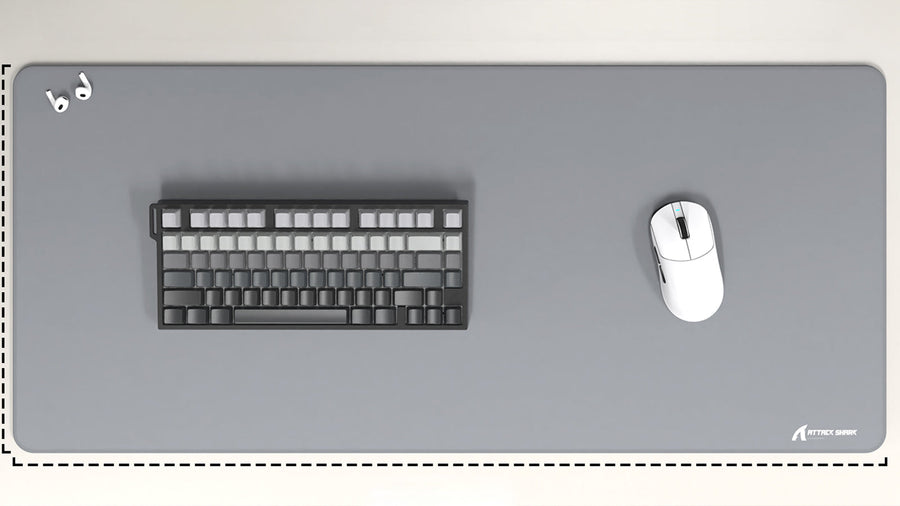
Your other wireless gaming peripherals can also cause direct signal conflict. For example, if you plug your headset receiver into the exact same USB hub as the dongle for your wireless gaming mouse, the two devices will fight for airspace. If you notice your audio lagging exactly when you flick your wireless gaming mouse quickly across your mousepad, you are experiencing peripheral interference. Moving the dongles to opposite sides of your computer case will instantly resolve this conflict.
Router Proximity
Wi-Fi routers primarily broadcast on the 2.4GHz and 5GHz bands. If your gaming setup is positioned within three feet of your home Wi-Fi router, the overwhelming strength of the router's signal will drown out the small transmitter of your headset.
Step-By-Step PC Audio Sync Issues And Fixes
Windows relies on complex audio routing systems. When settings are misconfigured, the operating system adds unnecessary processing time to your sound. Resolving PC audio sync issues requires adjusting specific settings within the Windows Control Panel.
Fix 1: Disable Windows Audio Enhancements
Windows includes built-in audio enhancements designed to make music sound richer, but these filters require processing power and introduce latency.
- Right-click the speaker icon on your Windows taskbar and select "Sound settings."
- Scroll down and click "More sound settings" to open the classic Control Panel window.
- Right-click your active headset and select "Properties."
- Navigate to the "Enhancements" tab.
- Check the box labeled "Disable all enhancements" and click "Apply."
Fix 2: Adjust The Audio Sample Rate
Mismatched sample rates between your game and your hardware will force Windows to resample the audio on the fly, creating heavy PC audio sync issues.
- Open the headset "Properties" window again.
- Navigate to the "Advanced" tab.
- Look at the "Default Format" dropdown menu.
- Change the setting to "16 bit, 48000 Hz (DVD Quality)." This is the native format for almost all modern games.
- Uncheck the box that says "Allow applications to take exclusive control of this device," then click "Apply."
Fix 3: Reinstall The Dedicated Device Software
If you are using a premium headset from brands like Logitech, Razer, or SteelSeries, you must use their proprietary software (like G Hub or Synapse) to manage the device. Open the software and check for mandatory firmware updates for both the headset and the USB dongle.
Step-By-Step Fixes For Console Gamers (PS5/Xbox)
Console gamers cannot access deep operating system settings like PC users, but latency can still be mitigated through careful hardware setup and display configurations.
Fix 1: Utilize The Front USB Ports
Console manufacturers design the front USB ports specifically for low-latency peripheral connections. Plugging your transmitter into the back of the console forces the signal to travel through the console's internal heat shielding and the television screen behind it. Always plug the audio dongle into the front-facing USB port to ensure a direct line of sight to your seating position.
Fix 2: Change Console Audio Formats
If your console is trying to process heavy surround sound formats, it can delay the audio output.
For PlayStation 5:
- Navigate to Settings > Sound > Audio Output.
- Scroll down to "Audio Format (Priority)."
- Change this setting from "Dolby" or "DTS" to "Linear PCM." Uncompressed PCM processes significantly faster.
For Xbox Series X/S:
- Go to Settings > General > Volume & audio output.
- Under "Headset audio," change the format to "Stereo uncompressed."
Fix 3: Enable TV Game Mode
Sometimes, the audio is not delayed; your television screen is delayed. Modern TVs use heavy image processing (like motion smoothing) that delays the picture by up to 100 milliseconds. If your audio plays instantly but the TV picture lags behind, it feels like an audio delay. Navigate to your TV's picture settings and enable "Game Mode" to disable all image processing and sync the video with the audio.
Conclusion: Fix Wireless Headset Audio Lag At The Source
Resolving latency problems requires identifying the exact bottleneck in your connection. By understanding Bluetooth vs 2.4GHz latency, minimizing physical interference, and updating system configurations, you can eliminate desync completely. Applying these specific gaming audio delay fixes ensures your sound matches your screen perfectly. If you continue to experience problems after trying these steps, test your device on another system to rule out hardware failure and permanently fix wireless headset audio lag for good.
FAQs
Can a wireless gaming mouse cause my headset audio to lag?
Yes. If the USB receiver for your headset and the receiver for your wireless gaming mouse are plugged in too close to each other (such as neighboring ports on a USB hub), their 2.4GHz frequencies can interfere. Moving them to opposite ends of your computer solves this issue.
Why does my audio only lag in specific games?
If the lag is isolated to a single game, the issue is software-based. The game engine may be struggling with CPU priority, or the game's internal audio sample rate is clashing with your Windows settings. Changing your Windows audio format to 16 bit, 48000 Hz usually fixes this.
How do I test my exact audio latency?
You can test latency by searching for "Audio Video Sync Test" videos on YouTube. These videos feature a bouncing ball that creates a sound exactly when it hits a line. If you hear the sound after the ball hits the line, you have a measurable latency issue.